How to review Audit Logs
Your Aembit Tenant: Aembit Tenants serve as isolated, dedicated environments within Aembit that provide complete separation of administrative domains and security configurations.Learn more includes detailed audit log information so you can troubleshoot issues in your environment. This data helps you diagnose issues as they arise and gives you detailed information about each event.
Retrieving audit log data
Section titled “Retrieving audit log data”To retrieve event information from audit logs, perform the following steps:
-
Log into your Aembit Tenant.
-
Click Reporting in the left sidebar.
-
At the top, select Reporting ☰ Audit Logs.
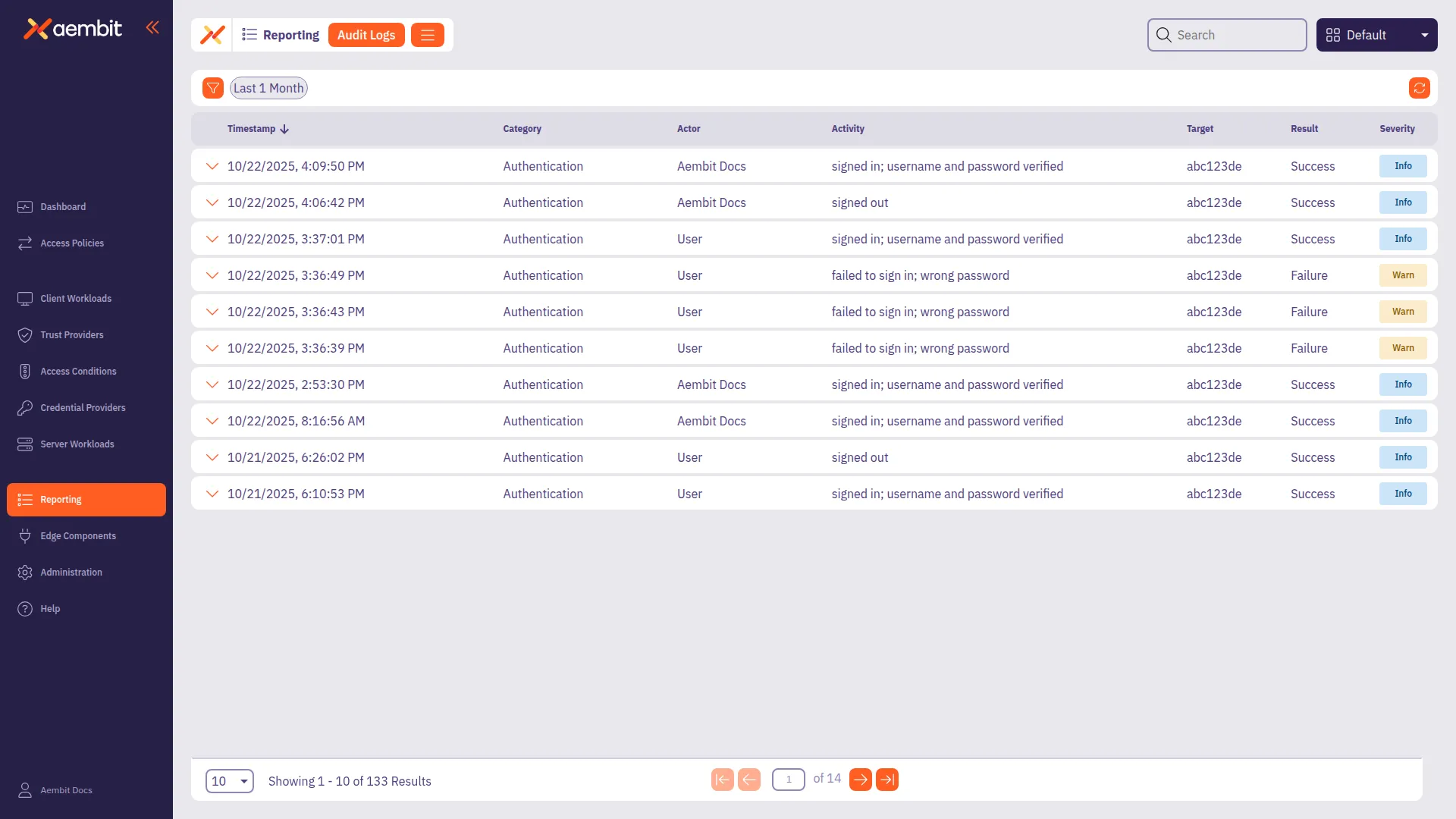
Aembit displays the Audit Logs page with a list of existing Audit Logs.
-
By default Aembit displays all logs. You can filter the results using the following:
-
Timespan - The period of audit log data to display.
Default - 30 Days
Options -
1 Day,15 Days,30 Days,3 Months,6 Months,1 Year, orAll -
Category - The type of event information to display.
Default - All
Options -
AccessConditions,AccessPolicies,AgentControllers,Agents,Authentication,ContentSecurity,CredentialProvider,CredentialProviderIntegrations,DiscoveryIntegration,GlobalPolicyCompliance,IdentityProviders,Integrations,LogStreams,PkiSettings,ResourceSets,Roles,Routing,SignOnPolicies,StandaloneCertificateAuthorities,Tenant,TrustProvider,Users,Workloads. -
Severity - The level of importance of the event.
Default - All
Options -
Alert,Warn,Info
-
-
After you select your filtering options, Aembit displays the matching audit log information in the table.
Audit logs reporting example
Section titled “Audit logs reporting example”To review detailed audit log information for an event, select the event. The event expands to show a summary on the left side of the information panel and detailed JSON output on the right side.
The following example shows the audit log for a failed Trust Provider: Trust Providers validate Client Workload identities through workload attestation, verifying identity claims from the workload's runtime environment rather than relying on pre-shared secrets.Learn more attestation.
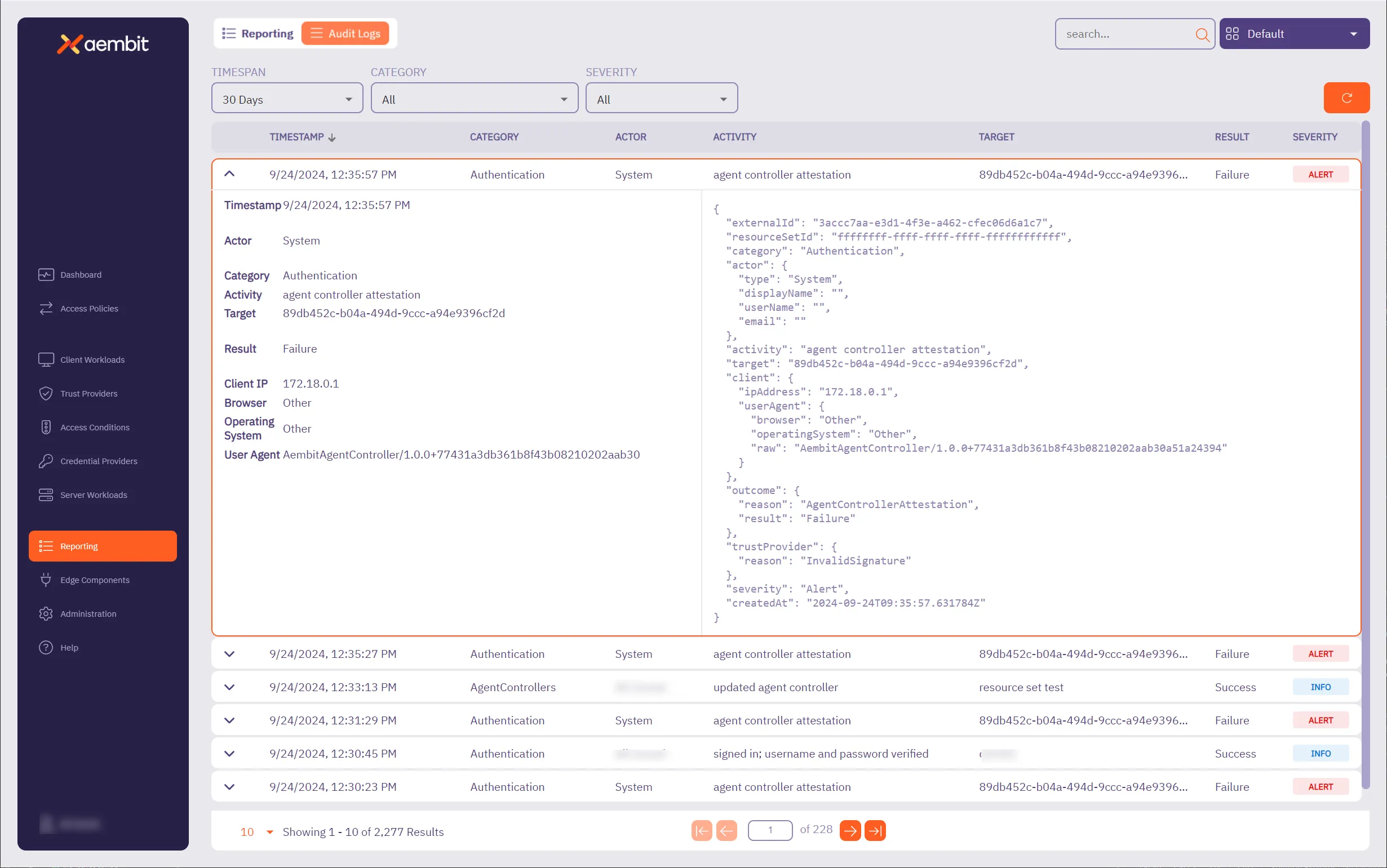
In the left side of the information panel, you see a summary of the event information displayed, including:
- Timestamp - The time Aembit recorded the event.
- Actor - The entity responsible for the request.
- Category - The category of the event.
- Activity - The type of request.
- Target - The identifier of the entity that you are running the activity against. For example, if you are editing a Credential Provider: Credential Providers obtain the specific access credentials—such as API keys, OAuth tokens, or temporary cloud credentials—that Client Workloads need to authenticate to Server Workloads.Learn more, the target is the name of the Credential Provider.
- Result - The result of the event.
- Client IP - The IP address of the user or workload that executed the action the audit log records.
- Browser - The browser used by the client.
- Operating System - The operating system used by the client.
- User Agent - The User-Agent HTTP header included in the API request that generated the audit log activity.
In the right side of the information panel, you see the more granular, detailed information, including:
- ExternalID - The external ID of the audit log.
- Resource Set ID - The Resource Set: Resource Sets are organizational containers that group Access Policy components together, enabling you to manage configurations across different environments, regions, or use cases.Learn more ID of the entity affected by the audit log generating activity.
- Category - The category of the event in the audit log.
- Actor - The entity responsible for the request.
- Activity - The type of request.
- Target - The target entity of the action represented by the audit log record.
- Client - The metadata for the Client (for example, browser) environment.
- Outcome - The verdict of the request.
- Trust Provider - The Trust Provider used in the request. This value applies only to Trust Provider attestation-based authentication, for example, Agent Controller attested authentication or Proxyless authentication.
- Severity - The severity of the event.
- Created At - The time of the request.
SSO login failures
Section titled “SSO login failures”When a single sign-on (SSO) login fails, Aembit records an audit log event with category Authentication, result
Failure, and severity Alert.
The Activity field names the step that failed, and the Outcome field gives the reason.
The following table lists each activity and what failed:
| Activity | What failed |
|---|---|
OIDC SSO Token Validation | Aembit failed to validate the OpenID Connect (OIDC) Identity Provider (IdP) response |
OIDC SSO Remote Protocol | The OIDC IdP returned an error |
SAML SSO IdP Resolution | Aembit failed to load the Security Assertion Markup Language (SAML) IdP’s metadata |
SSO User Provisioning | The IdP’s claims had no email address, so Aembit failed to create the user |
SSO Role Mapping | The IdP has no role mappings, or the user’s claims matched none of them |
MCP Auth SSO Callback | The SSO callback for a Model Context Protocol (MCP) authorization login was missing or invalid |
failed sign in using OIDC SSO | The user has no account, an inactive account, or no active role |
failed sign in using SAML SSO | The user has no account, an inactive account, or no active role |