How to add a new role
To add a role to your Aembit Tenant, perform the following steps. Before you add a role that restricts access, read How permissions combine across roles, because a restrictive role doesn’t limit a user who also holds a permissive one.
-
Log into your Aembit Tenant.
-
Click Administration in the left sidebar.
-
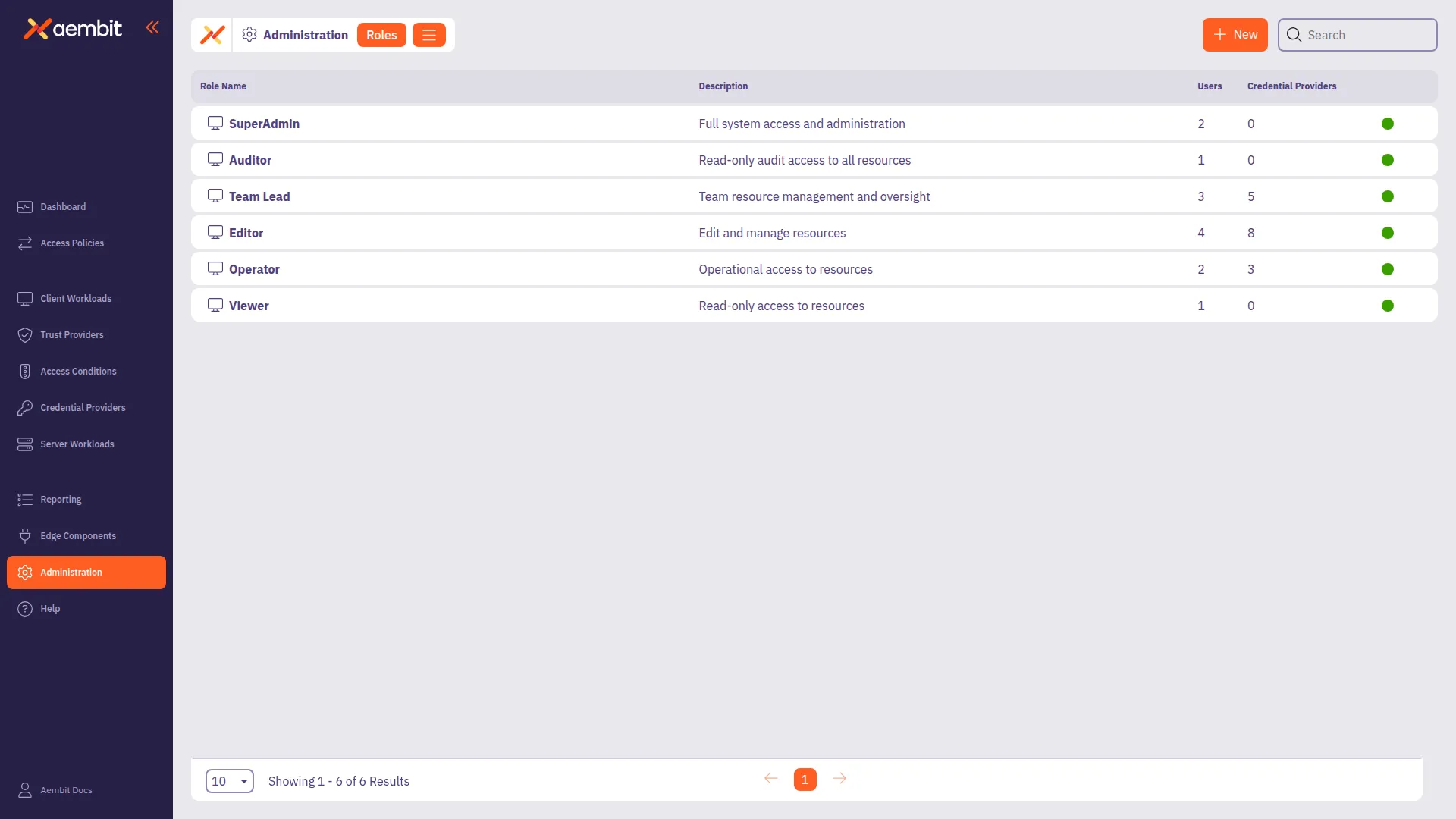
At the top, select Administration ☰ Roles.
Aembit displays the Roles page with a list of existing roles.
-
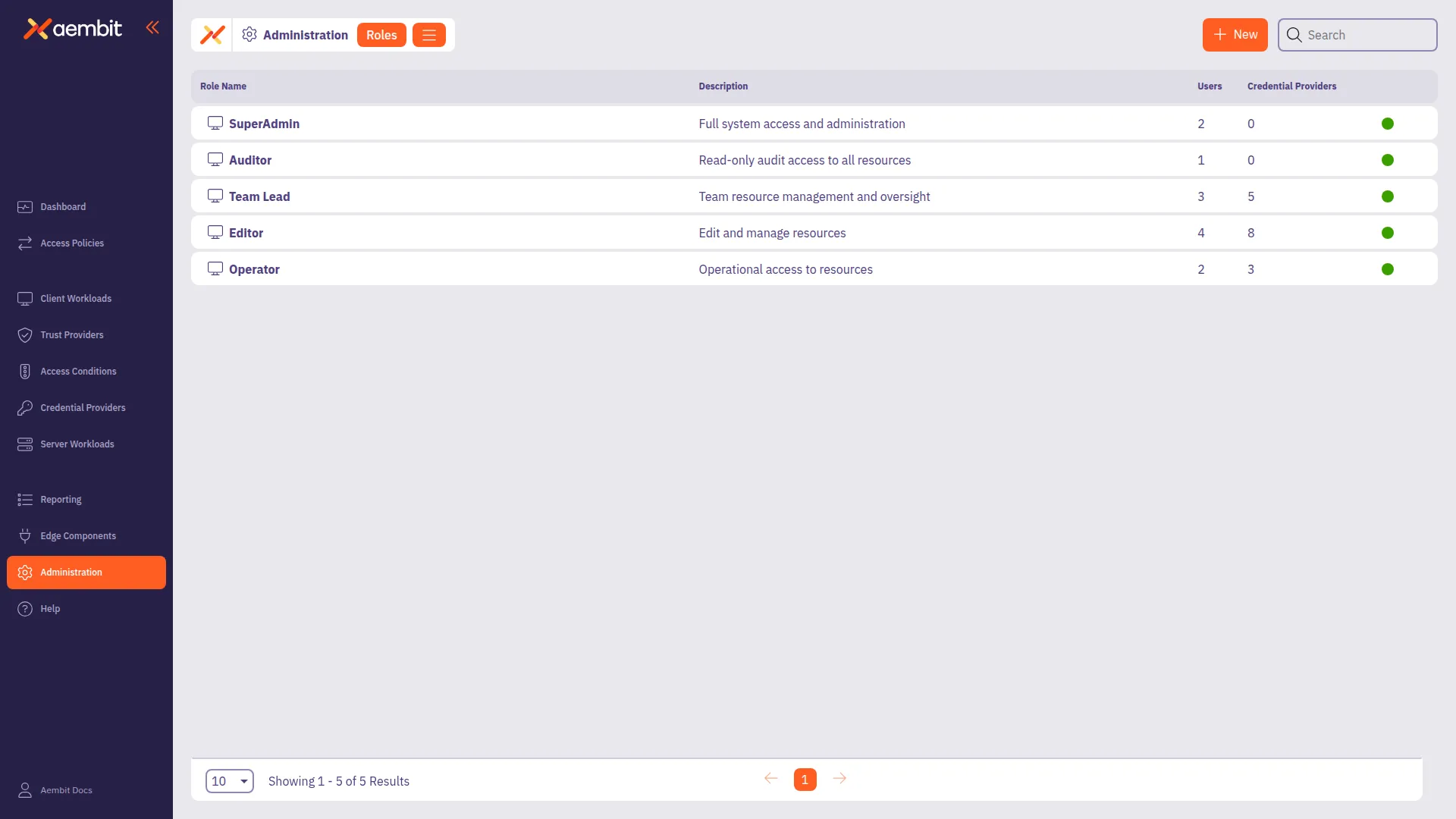
Click + New, revealing the Roles pop out menu.
-
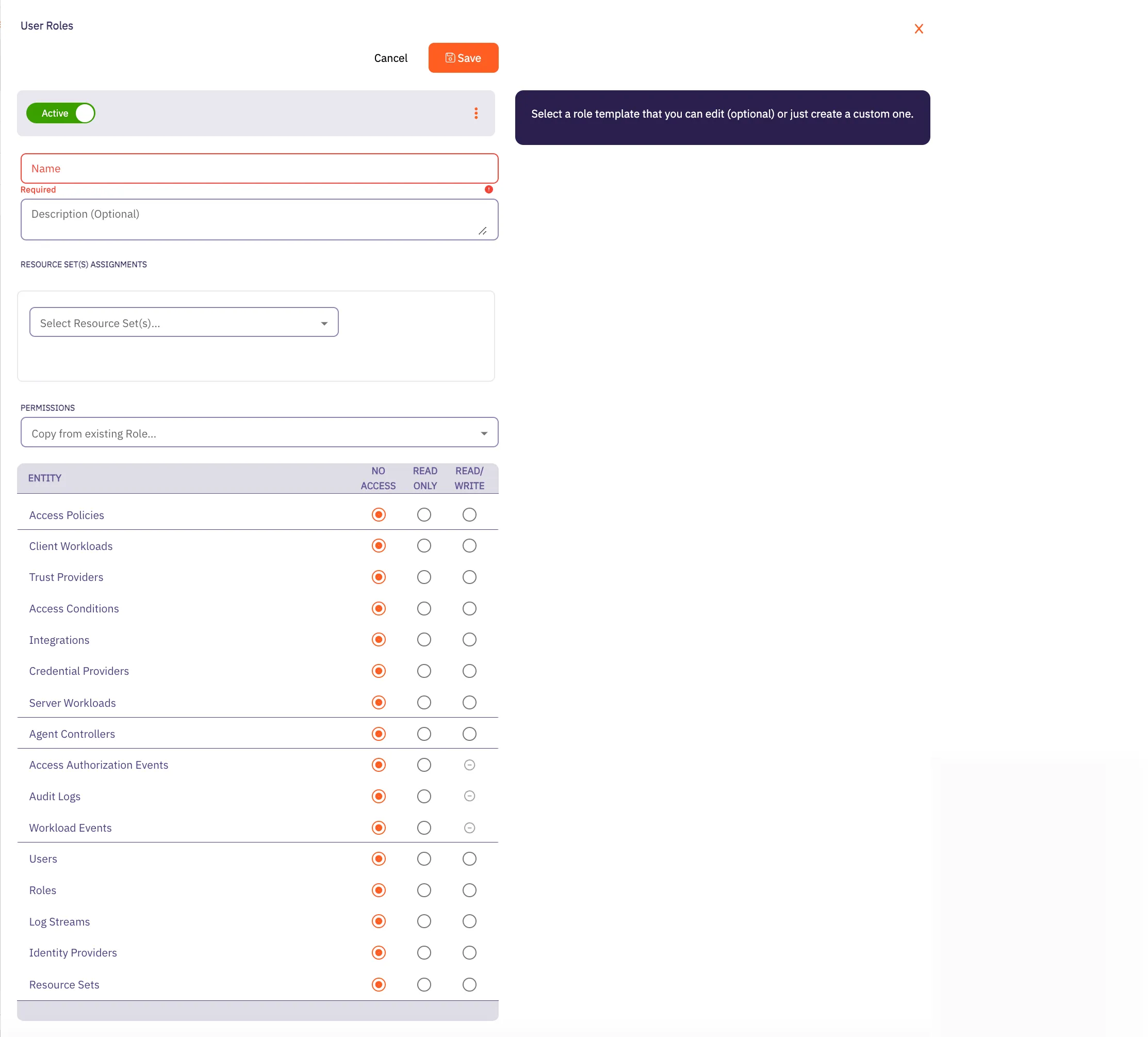
Fill out the following fields:
- Name - The name of the Role. Role names must be unique in your Tenant.
- Description - An optional text description of the Role.
- Resource Set Assignments - A drop-down menu that assigns existing Resource Sets to the Role. This field appears when your Tenant uses Resource Sets. A user whose Roles have no Resource Set may not be able to sign in to Aembit.
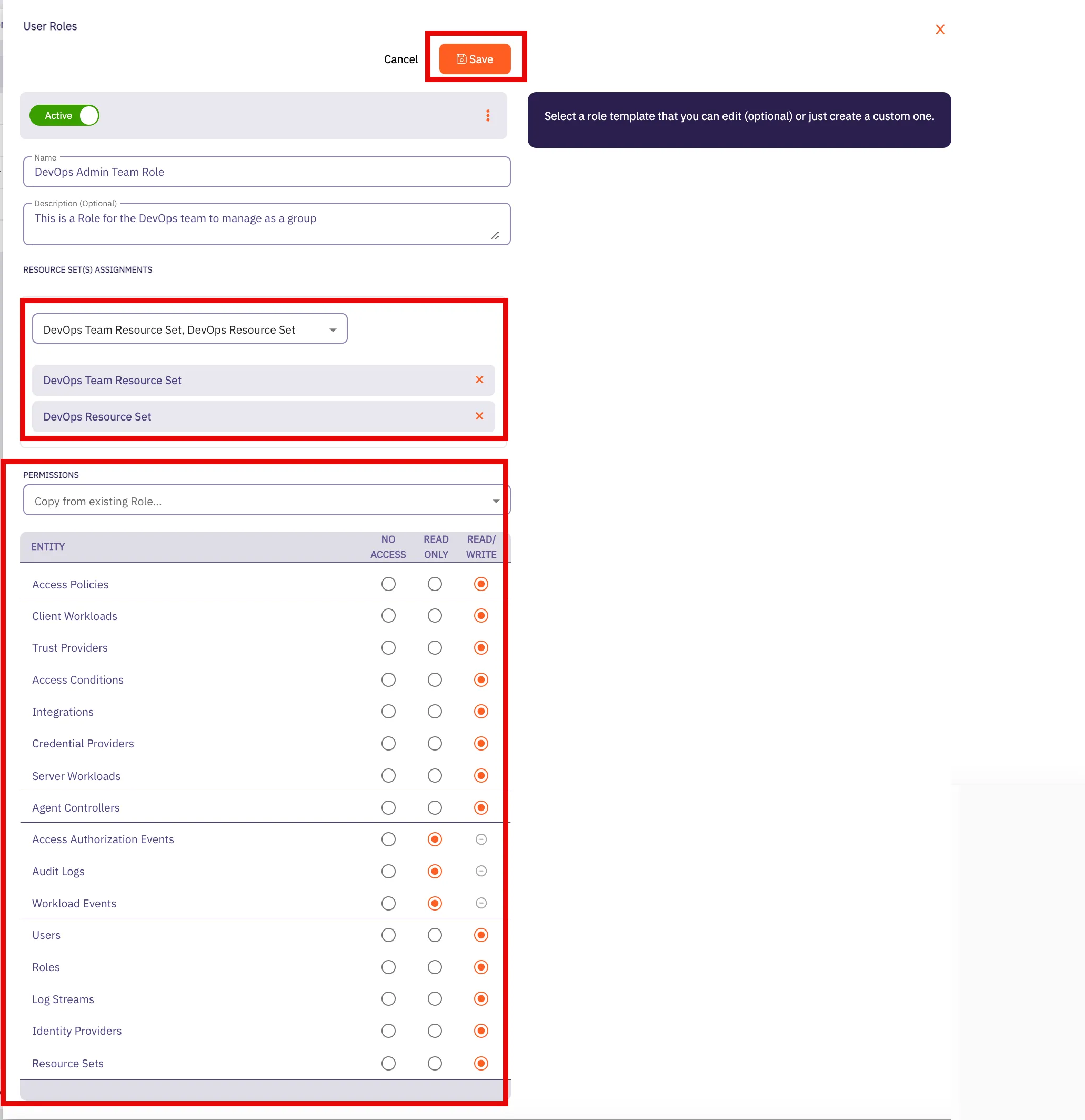
- Permissions - For each resource type, select No Access, Read Only, or Read/Write. To start from an existing Role’s permissions, select that Role in Copy from existing Role…. Aembit fills the radio buttons with that Role’s permissions, and you can then adjust them. This option appears only when you create a Role. See Permission levels for what each level allows.
In the following example, the new Role copies the SuperAdmin permissions:
-
Click Save.
Aembit displays the role on the Roles page.