GCP BigQuery
Google BigQuery, part of Google Cloud Platform, is a data warehousing solution designed for storing, querying, and analyzing large datasets. It offers scalability, SQL-based querying, and integrations with other GCP services and third-party tools.
Below you can find the Aembit configuration required to work with the GCP BigQuery service as a
Server Workload: Server Workloads represent target services, APIs, databases, or applications that receive and respond to access requests from Client Workloads.Learn more using the BigQuery REST API.
Aembit supports multiple authentication/authorization methods for BigQuery. This page describes scenarios where the Credential Provider: Credential Providers obtain the specific access credentials—such as API keys, OAuth tokens, or temporary cloud credentials—that Client Workloads need to authenticate to Server Workloads.Learn more is configured for BigQuery via:
OAuth 2.0 authorization code
Section titled “OAuth 2.0 authorization code”Create the OAuth client ID
Section titled “Create the OAuth client ID”-
Sign in to the Google Cloud console and go to the Credentials page. Confirm you are working in a project where you have authorization.
-
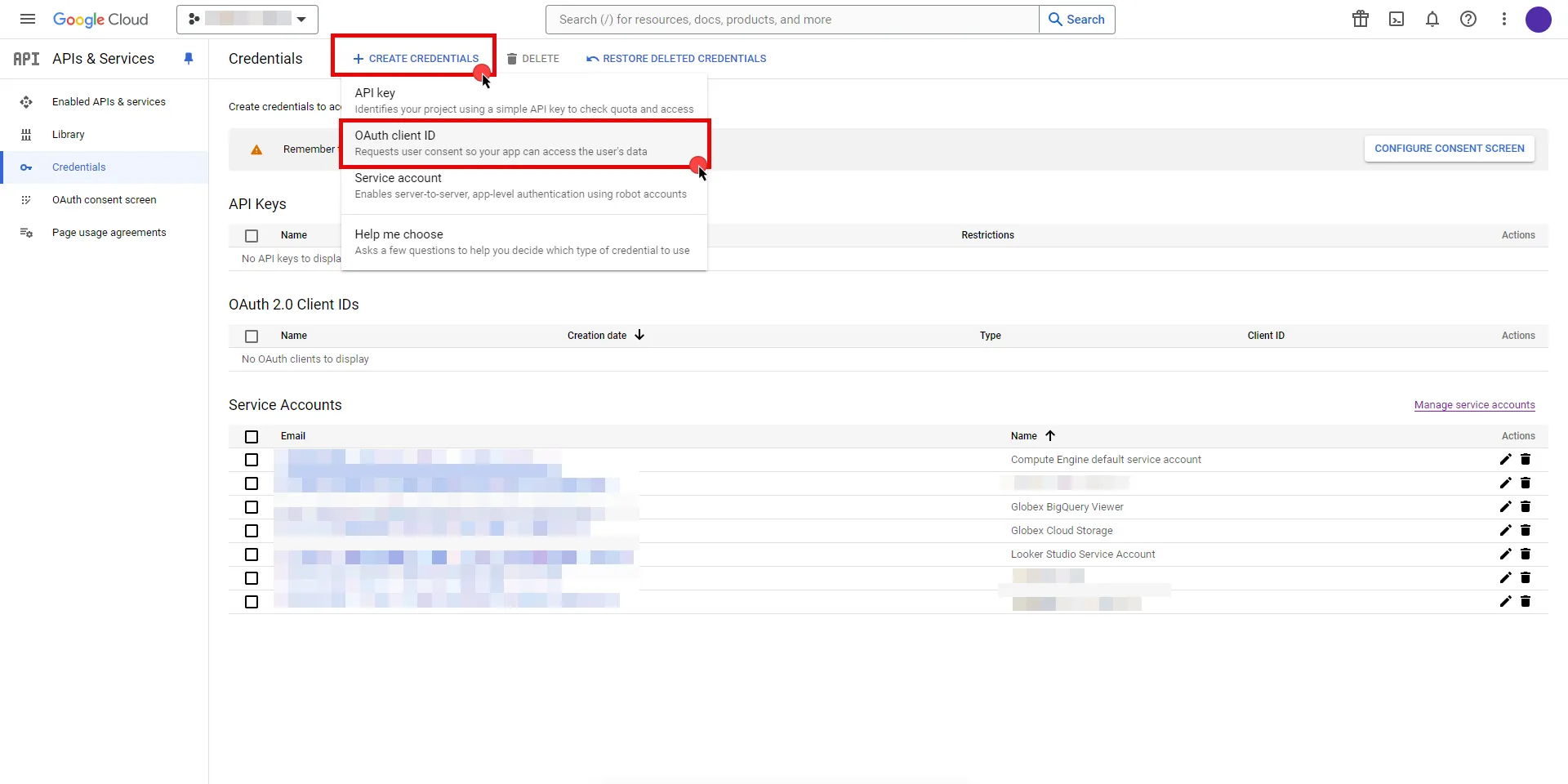
Click Create Credentials, then select OAuth client ID.
-
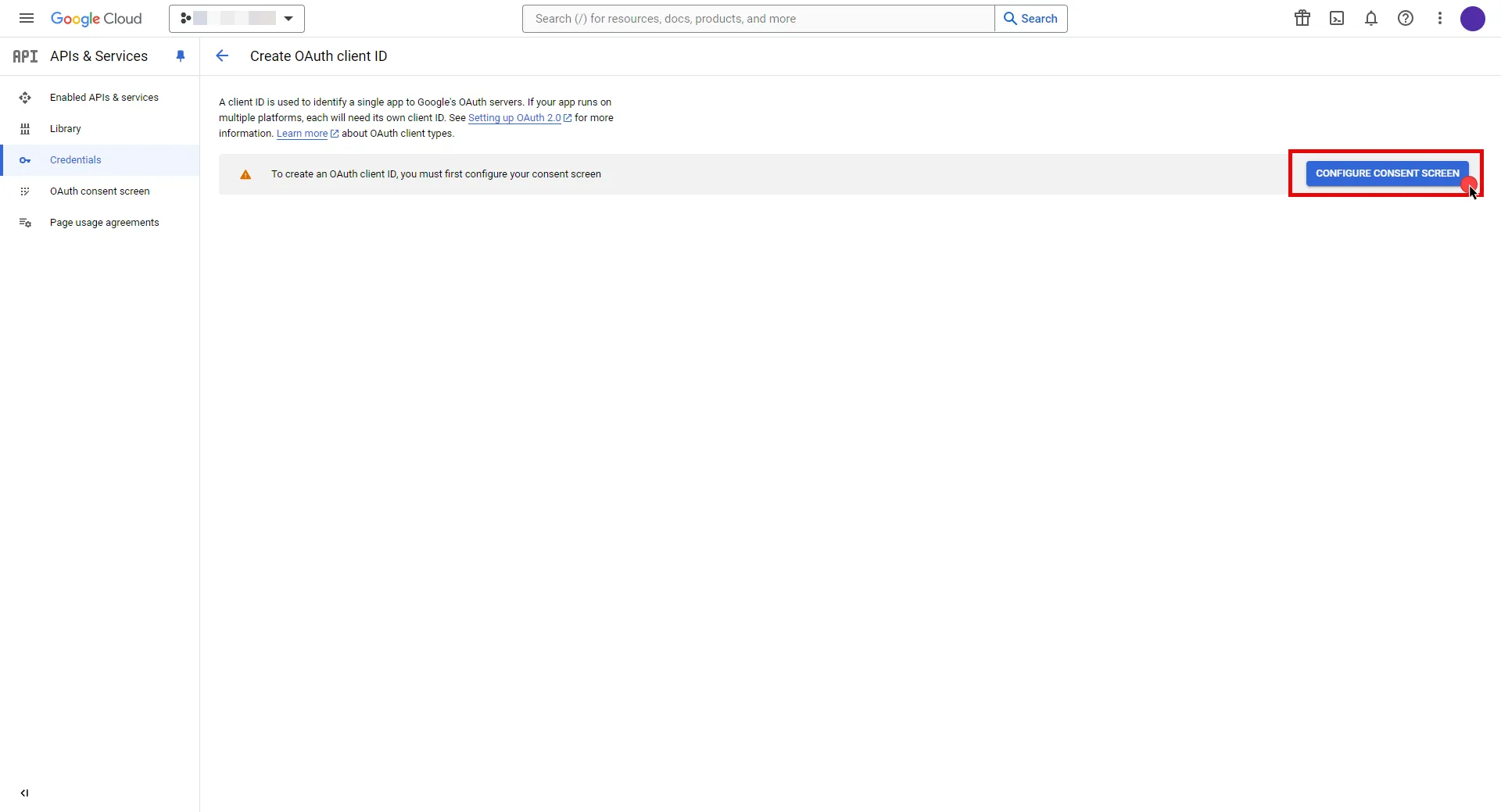
If your project has no consent screen, click Configure Consent Screen.
-
Choose a User Type, then click Create.
-
Enter an app name, choose a user support email, and enter a developer contact email, then click Save and Continue.
-
Click Save and Continue to skip the Scopes step, then review the Summary and click Back to Dashboard.
-
Return to the Credentials page, click Create Credentials, and select OAuth client ID again.
-
For Application type, select Web application, then enter a name for the client. Leave the Authorized redirect URIs field empty for now; you add the Aembit Callback URL in the next section. Keep the Google Cloud console open.
Configure the Credential Provider
Section titled “Configure the Credential Provider”Create and authorize an OAuth 2.0 Authorization Code Credential Provider in Aembit. For the full field reference and the authorization flow, see Configure OAuth 2.0 Authorization Code Credential Provider.
-
In your Aembit Tenant, create a Credential Provider, select the OAuth 2.0 Authorization Code credential type, then copy the read-only Callback URL.
-
Return to the Google Cloud console, paste the Callback URL into the Authorized redirect URIs field, then click Create.
-
In the pop-up, copy both the Client ID and the Client Secret, and store them for the next step.
-
Back in Aembit, configure the following BigQuery-specific fields, then click Save:
Field Value Client ID The Client ID you copied from Google Cloud Client Secret The Client Secret you copied from Google Cloud Scopes https://www.googleapis.com/auth/bigqueryOAuth URL https://accounts.google.comPKCE Required Off Lifetime 1 year For OAuth URL, click URL Discovery to populate the Authorization URL and Token URL. For other scopes, see OAuth 2.0 Scopes for Google APIs. For Lifetime, Google issues a 7-day refresh token to projects with an external user type and a publishing status of Testing. Google doesn’t specify a refresh token lifetime for the internal user type. See the Google documentation on token expiration for details.
-
Click Authorize, then choose your Google Account and click Allow. The Credential Provider status changes to Ready when the flow completes.
Create the Server Workload
Section titled “Create the Server Workload”-
Create a new Server Workload.
-
Configure the following fields:
Field Value Name A user-friendly name Host bigquery.googleapis.comApplication Protocol HTTP Port 443 with TLS Forward to Port 443 with TLS Authentication method HTTP Authentication Authentication scheme Bearer
Create an Access Policy
Section titled “Create an Access Policy”Create an Access Policy: Access Policies define, enforce, and audit access between Client and Server Workloads by cryptographically verifying workload identity and contextual factors rather than relying on static secrets.Learn more linking your Client Workload: Client Workloads represent software applications, scripts, or automated processes that initiate access requests to Server Workloads, operating autonomously without direct user interaction.Learn more, the OAuth 2.0 Authorization Code Credential Provider, and the Server Workload. See Access Policies for details.
Google workload identity federation
Section titled “Google workload identity federation”Configure the Credential Provider
Section titled “Configure the Credential Provider”Follow the complete setup guide for the Google Workload Identity Federation Credential Provider:
Configure a Google GCP WIF Credential Provider
This guide covers:
- Creating the Credential Provider in Aembit
- Setting up a service account in Google Cloud
- Creating a Workload Identity Federation pool and OIDC provider, including the attribute mapping
- Granting the pool access to the service account
- Completing the Credential Provider and verifying the connection
Create the Server Workload
Section titled “Create the Server Workload”-
Create a new Server Workload.
-
Configure the following fields:
Field Value Name A user-friendly name Host bigquery.googleapis.comApplication Protocol HTTP Port 443 with TLS Forward to Port 443 with TLS Authentication method HTTP Authentication Authentication scheme Bearer
Create an Access Policy
Section titled “Create an Access Policy”Create an Access Policy linking your Client Workload, the Google Workload Identity Federation Credential Provider, and the Server Workload. See Access Policies for details.
Client Workload configuration
Section titled “Client Workload configuration”Aembit now handles the credentials required to access the Server Workload, eliminating the need for you to manage them directly. You can remove any previously used credentials from the Client Workload.
If you access the Server Workload through an SDK or library, it’s possible that the SDK/library may still require credentials to be present for initialization purposes. In this scenario, you can provide placeholder credentials. Aembit overwrites these placeholder credentials with the appropriate ones during the access process.
Required features
Section titled “Required features”- You must configure the TLS Decrypt feature to work with the GCP BigQuery Server Workload.