How to set up Okta SSO with your Aembit Tenant
This page sets up Single Sign-On (SSO) from Okta to your Aembit Tenant: Aembit Tenants serve as isolated, dedicated environments within Aembit that provide complete separation of administrative domains and security configurations.Learn more with the Aembit integration from the Okta Integration Network (OIN), over OpenID Connect (OIDC): An identity layer built on top of OAuth 2.0 that lets applications verify the identity of a user or workload and obtain basic profile information using JSON Web Tokens (JWTs).Learn more(opens in new tab) 1.0 or Security Assertion Markup Language (SAML): An XML-based open standard for exchanging authentication and authorization data between an identity provider and a service provider, commonly used for Single Sign-On (SSO).Learn more(opens in new tab) 2.0. Users of the can sign in with the same Identity Provider.
To build a custom Okta application instead, see the Okta tab under Provider-specific examples.
Before you start
Section titled “Before you start”Before you set up Okta SSO, make sure you have:
- Administrator access to your Okta org.
- Administrator access to your Aembit Tenant.
- Your Aembit Tenant ID, the first part of your Aembit Tenant URL.
In
https://abc123.aembit.io, the Aembit Tenant ID isabc123.
Configure SSO
Section titled “Configure SSO”Setup moves between your Aembit Tenant and the Okta Admin Console in three parts. Select OIDC 1.0 or SAML 2.0 in any part, and the other parts switch to the same protocol.
Configure your Aembit Tenant
Section titled “Configure your Aembit Tenant”The Aembit integration in Okta needs the ID of an Identity Provider in your Aembit Tenant, and Aembit assigns that ID only after you save the Identity Provider. Save it first with placeholder credentials, then replace them with the credentials Okta creates.
-
Log into your Aembit Tenant.
-
Click Administration in the left sidebar.
-
At the top, select Administration ☰ Identity Providers.
-
Click + New.
-
On the Details tab, enter a Name, such as
Okta OIDC, and select OIDC 1.0 as the Identity Provider Type. -
In Identity Provider Base URL, enter your Okta org URL, such as
https://example.okta.com.To find it, click your username in the upper-right corner of the Okta Admin Console. Okta shows the URL without
https://, so add it. -
In Identity Provider Client ID, enter a placeholder, such as
placeholder. -
Leave Identity Provider Scopes set to
openid profile email. -
Under Authentication Method, select Client Secret, and enter a placeholder in Client Secret.
-
Click Save.
-
Click the new Identity Provider to open it, and copy the value of its ID field.
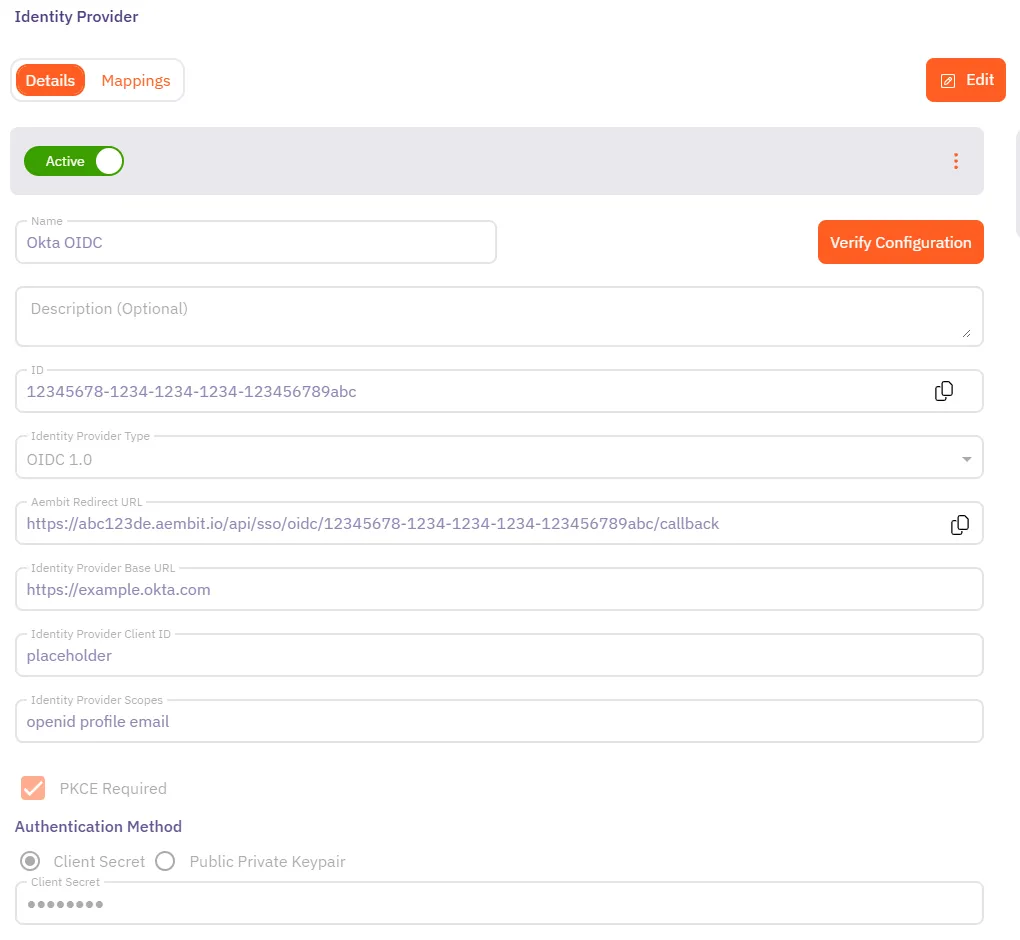
SAML 2.0 setup starts in Okta, because the Identity Provider in your Aembit Tenant needs the metadata URL that the Aembit integration in Okta creates. Continue to Configure the Okta Admin Console.
Configure the Okta admin console
Section titled “Configure the Okta admin console”-
In the Okta Admin Console, go to Applications and Resources > Applications and click Browse App Catalog.
-
Search for
Aembit, select the Aembit integration, and click Add Integration.
-
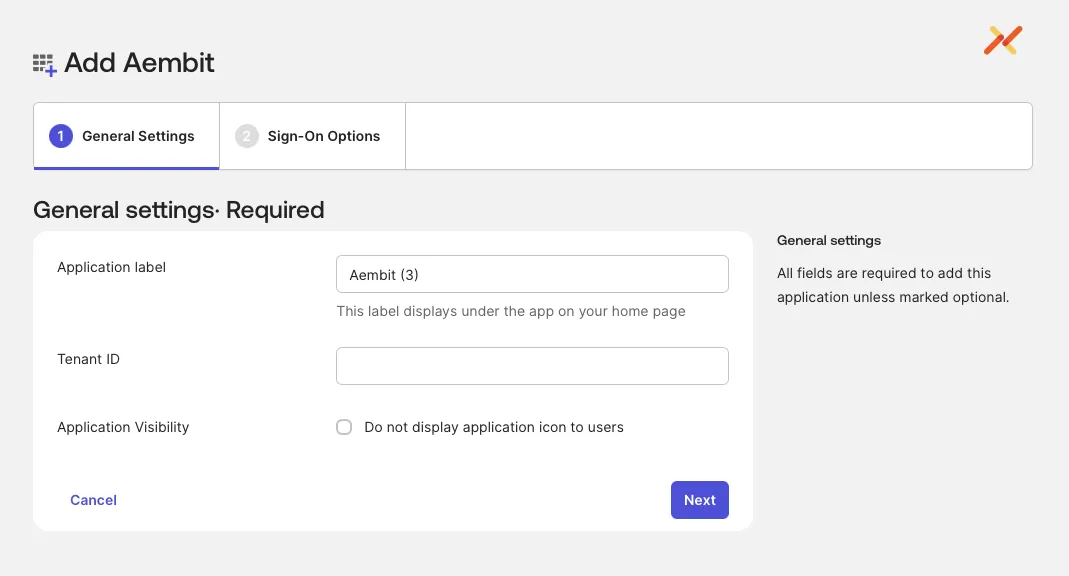
On the General Settings tab, enter an Application label and your Aembit Tenant ID in Tenant ID, then click Next.
-
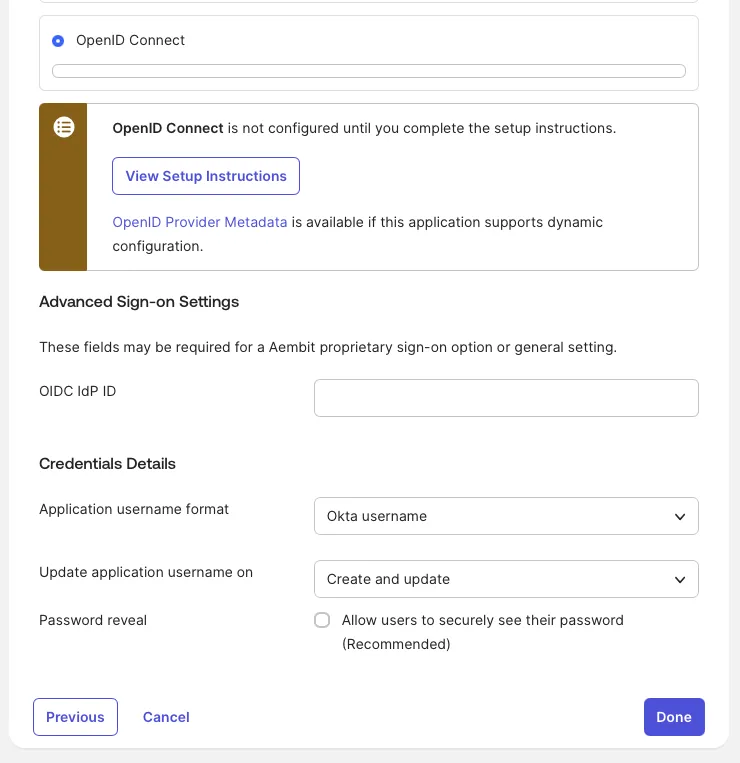
On the Sign-On Options tab, select OpenID Connect.
-
In OIDC IdP ID, paste the ID you copied from Aembit, then click Done.
-
On the Assignments tab that Okta opens, assign the users or groups who sign in to your Aembit Tenant.
-
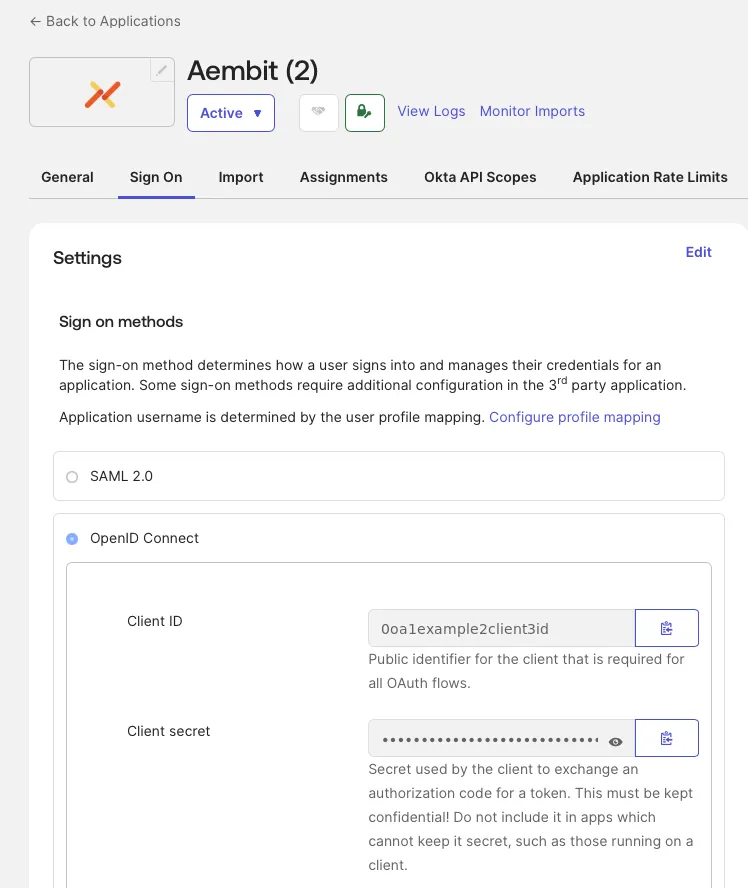
On the app’s Sign On tab, copy the Client ID and Client secret.
-
In the Okta Admin Console, go to Applications and Resources > Applications and click Browse App Catalog.
-
Search for
Aembit, select the Aembit integration, and click Add Integration. -
On the General Settings tab, enter an Application label and your Aembit Tenant ID in Tenant ID, then click Next.
-
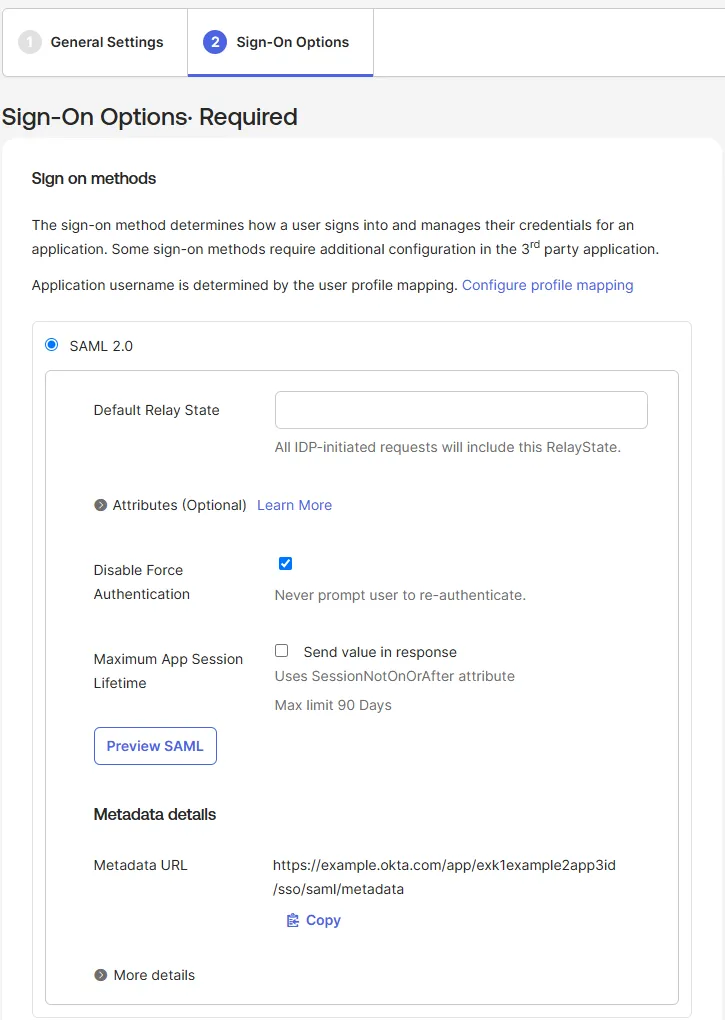
On the Sign-On Options tab, select SAML 2.0 and copy the Metadata URL.
-
Click Done.
-
On the Assignments tab that Okta opens, assign the users or groups who sign in to your Aembit Tenant.
Complete setup in your Aembit Tenant
Section titled “Complete setup in your Aembit Tenant”-
While still in your Aembit Tenant, click Edit on the Identity Provider you saved earlier.
-
Replace the placeholders in Identity Provider Client ID and Client Secret with the values from Okta, then click Save.
-
Log into your Aembit Tenant.
-
Click Administration in the left sidebar.
-
At the top, select Administration ☰ Identity Providers.
-
Click + New.
-
On the Details tab, enter a Name, such as
Okta SAML, and select SAML 2.0 as the Identity Provider Type. -
Paste the Okta metadata URL into Metadata URL, then click Save.
To create Aembit user accounts for assigned users the first time they sign in, see Configure automatic user creation.
Test SSO sign-in
Section titled “Test SSO sign-in”Test the setup with one user before you require everyone to sign in to your Aembit Tenant with SSO.
-
In an incognito or private browser window, go to
https://<tenantId>.aembit.io/login. -
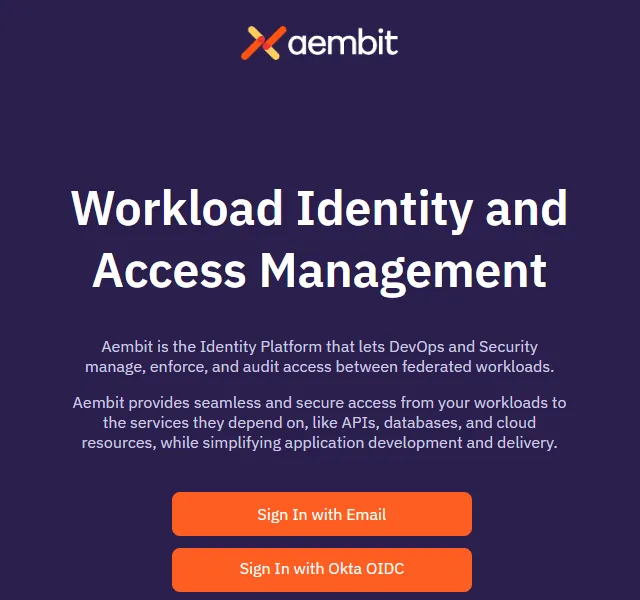
Click Sign In with followed by your Identity Provider’s name, such as Sign In with Okta OIDC.
-
Sign in to Okta.
Okta redirects you back to your Aembit Tenant, signed in.
Troubleshooting
Section titled “Troubleshooting”The following sections describe common issues with Okta SSO through the Aembit integration and how to resolve them.
SSO button doesn’t appear on login page
Section titled “SSO button doesn’t appear on login page”Solution: Wait a few moments and refresh the page. If the button still doesn’t appear, verify that you clicked Save in the Identity Provider configuration.
OIDC sign-in returns to the sign-in page with “SSO challenge failed”
Section titled “OIDC sign-in returns to the sign-in page with “SSO challenge failed””Aembit shows this error on your Aembit Tenant sign-in page before Okta asks the user to sign in.
Solution: Open the Identity Provider in your Aembit Tenant. Confirm that Identity Provider Client ID and Client Secret hold the values from the app’s Sign On tab in Okta, not the placeholders. If you saved the values in the last few minutes, wait a few minutes and try again.
Browser can’t find the Aembit address after SAML sign-in
Section titled “Browser can’t find the Aembit address after SAML sign-in”After the user signs in to Okta, the browser reports that it can’t find an aembit.io address that doesn’t match your
Aembit Tenant URL.
Okta builds that address from the app’s Tenant ID.
Solution: In Okta, on the app’s General tab, click Edit under App Settings, set Tenant ID to your Aembit Tenant ID, and click Save.
See also
Section titled “See also”- Okta overview - What the Aembit integration in the Okta Integration Network provides
- How to create an OIDC 1.0 Identity Provider - Connect a custom Okta OIDC application or another OIDC provider
- How to create a SAML 2.0 Identity Provider - Connect another SAML 2.0 provider
- Automatic User Creation - Create Aembit users when they first sign in through an Identity Provider
- Sign-On Policy - Require users to sign in with SSO