ChatGPT (OpenAI)
This guide walks you through creating a Server Workload: Server Workloads represent target services, APIs, databases, or applications that receive and respond to access requests from Client Workloads.Learn more in Aembit to securely access the OpenAI API without storing static API keys in your applications.
Use this Server Workload to let your applications call OpenAI for tasks such as text completion, summarization, and sentiment analysis, while Aembit manages and injects the credential at access time.
Create a project API key
Section titled “Create a project API key”To configure this Server Workload, you need an OpenAI account and a project API key. If you already have an API key, skip to Server Workload configuration. For more details on API key authentication, see the official OpenAI API documentation.
-
Sign in to your OpenAI account.
-
Go to the API Keys page from the left menu.
-
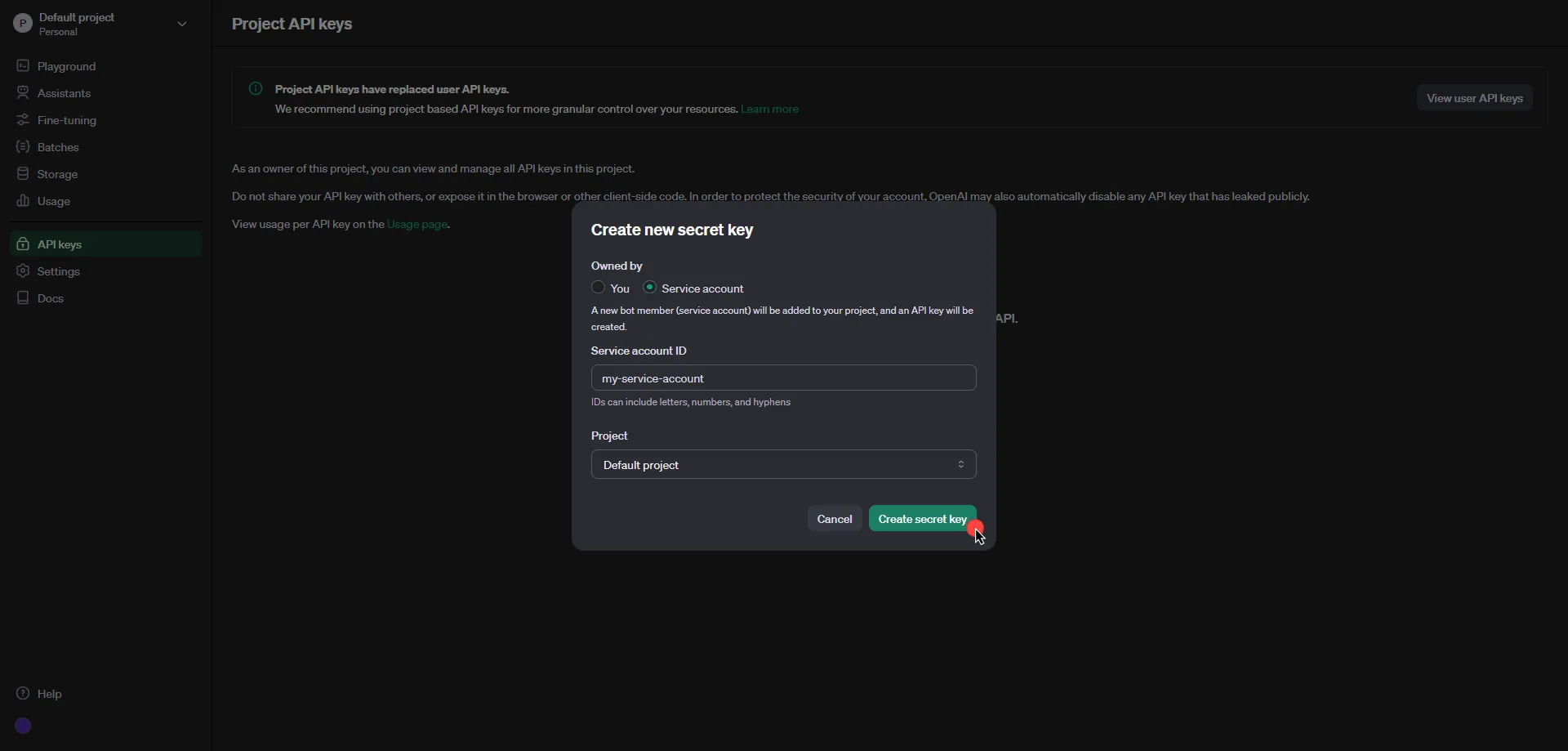
Click Create new secret key in the middle of the page.
-
In the pop-up window, set Owned by and choose the Project. If you don’t have multiple projects, OpenAI selects Default Project. Then fill in either the optional Name field or the Service account ID, depending on the Owned by selection.
- If you set Owned by to You, under the Permissions section, select the permissions (scopes) for your application.
- Click Create secret key to proceed.
-
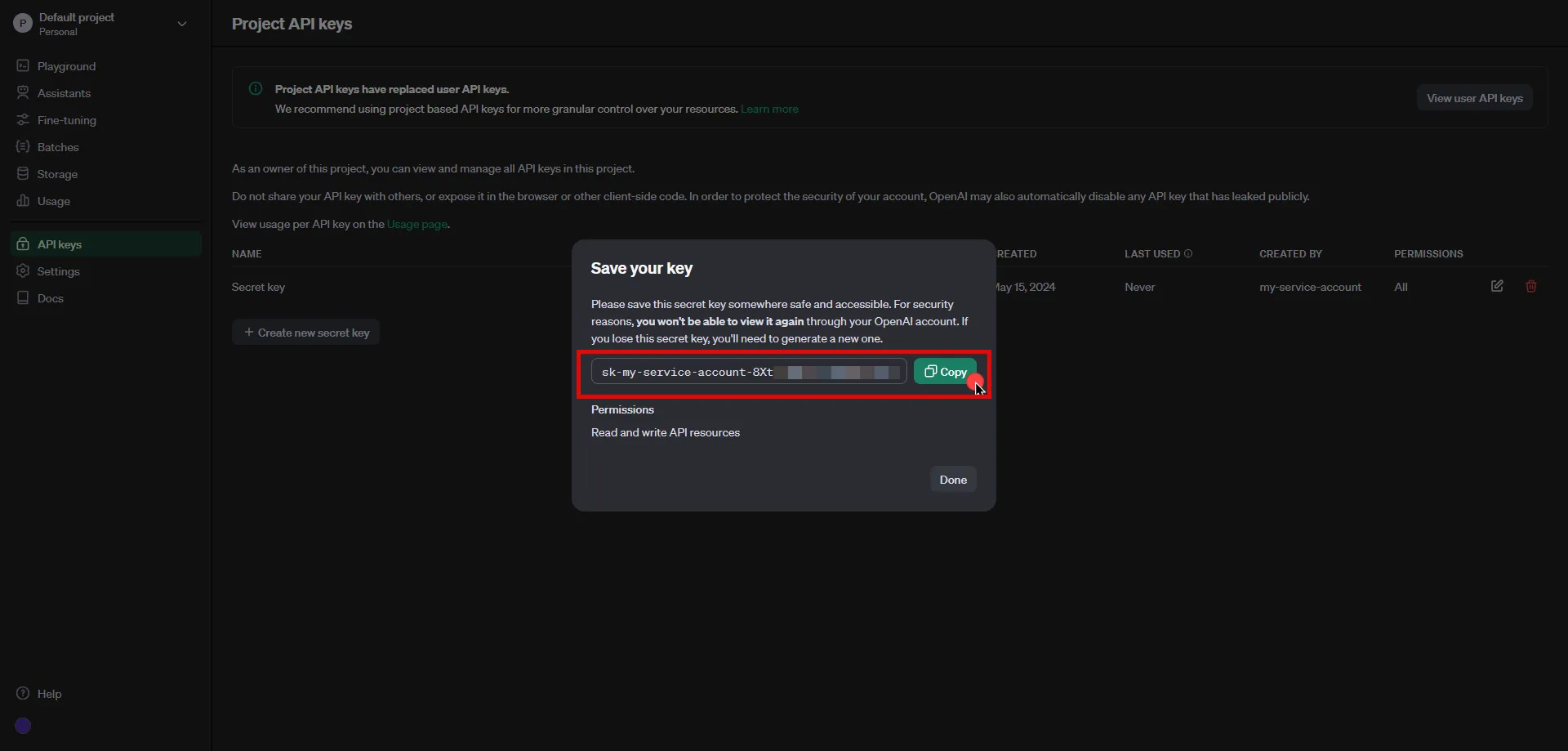
Click Copy and securely store the key for later use in your Aembit Tenant configuration.
Server Workload configuration
Section titled “Server Workload configuration”Now that you’ve copied your OpenAI API key, return to your Aembit Tenant to create the Server Workload.
-
Go to Server Workloads, and click + New.
-
Configure the following fields:
Field Value Name Choose a user-friendly name. Host api.openai.comApplication Protocol HTTP Port 443 with TLS Forward to Port 443 with TLS Authentication method HTTP Authentication Authentication scheme Bearer -
Click Save.
Credential Provider configuration
Section titled “Credential Provider configuration”In your Aembit Tenant, create a new Credential Provider with the following values:
- Name - Choose a user-friendly name.
- Credential Type - API Key
- API Key - Paste the key you copied from the OpenAI console.
Click Save to store the Credential Provider.
Client Workload configuration
Section titled “Client Workload configuration”Aembit handles the credentials required to access the Server Workload, so you don’t manage them directly. You can remove any previously used credentials from the Client Workload.
If you access the Server Workload through an SDK or library, the SDK or library might still require credentials for initialization purposes. In this scenario, you can provide placeholder credentials. Aembit overwrites these placeholder credentials with the appropriate ones during the access process.
Access Policy
Section titled “Access Policy”Create an Access Policy for a Client Workload to access the OpenAI Server Workload. Assign the newly created Credential Provider to this Access Policy.
Required features
Section titled “Required features”Configure the TLS Decrypt feature to work with the OpenAI API Server Workload.