Add MCP Tool Access Control Content Security
This guide shows how to add an MCP Tool Access Control Content Security: Content Security Providers govern the MCP tool traffic flowing through Aembit's MCP Identity Gateway. You add a provider to the Content Security component of an Access Policy.Learn more to an Access Policy in the Access Policy Builder.
Add a Content Security Provider to each Access Policy you want to control. Each Access Policy then governs its own tools.
To learn more about MCP Tool Access Control, see MCP Tool Access Control. For the syntax a tool name or pattern accepts, see MCP Tool Access Control tool name reference.
Prerequisites
Section titled “Prerequisites”- Access to the Aembit Tenant UI with permission to create and edit Access Policies. See Create an Access Policy.
- An Access Policy whose Server Workload is the MCP server you want to control, reached through the MCP Identity Gateway.
- The names of the tools you want to allow or block, as the upstream MCP Server: A server that implements the Model Context Protocol to provide tools, resources, or data to AI agents and MCP clients.Learn more(opens in new tab) publishes them. Aembit doesn’t match the prefixed names an AI agent displays. See Tool name matching.
How the MCP tool list works
Section titled “How the MCP tool list works”MCP Tool Access Control makes two decisions about every MCP tool: Tool Visibility: A control that governs which MCP tools an agent can discover when it requests a tool listing.Learn more for whether an AI agent can discover it, and Tool Invocation: A control that governs which MCP tools an agent can call, independently of which tools it can discover.Learn more for whether an AI agent can call it. The panel sets Allow or Block for both controls, then All or Specific for each control.
Each decision works from a list of MCP tools that you create:
- Add some MCP tools to the list and your choices apply to those MCP tools.
- Add no MCP tools to the list and every MCP tool still gets a decision.
An empty MCP tool list saves without warning. It’s valid, but there are specific outcomes.
Allow an empty list:
| Tool visibility | What an AI agent discovers | Tool invocation | What an AI agent calls |
|---|---|---|---|
| All | All tools | All | All tools |
| Specific | No tools | All | Already-known tools |
| All | All tools | Specific | No tools |
| Specific | No tools | Specific | No tools |
Block an empty list:
| Tool visibility | What an AI agent discovers | Tool invocation | What an AI agent calls |
|---|---|---|---|
| All | No tools | All | No tools |
| Specific | All tools | All | No tools |
| All | No tools | Specific | Already-known tools |
| Specific | All tools | Specific | All tools |
Add an MCP Tool Access Control Content Security Provider
Section titled “Add an MCP Tool Access Control Content Security Provider”MCP Tool Access Control has no connection details to enter.
To add the provider to an Access Policy, follow these steps:
-
Log in to your Aembit Tenant, and go to Access Policies in the left sidebar.
-
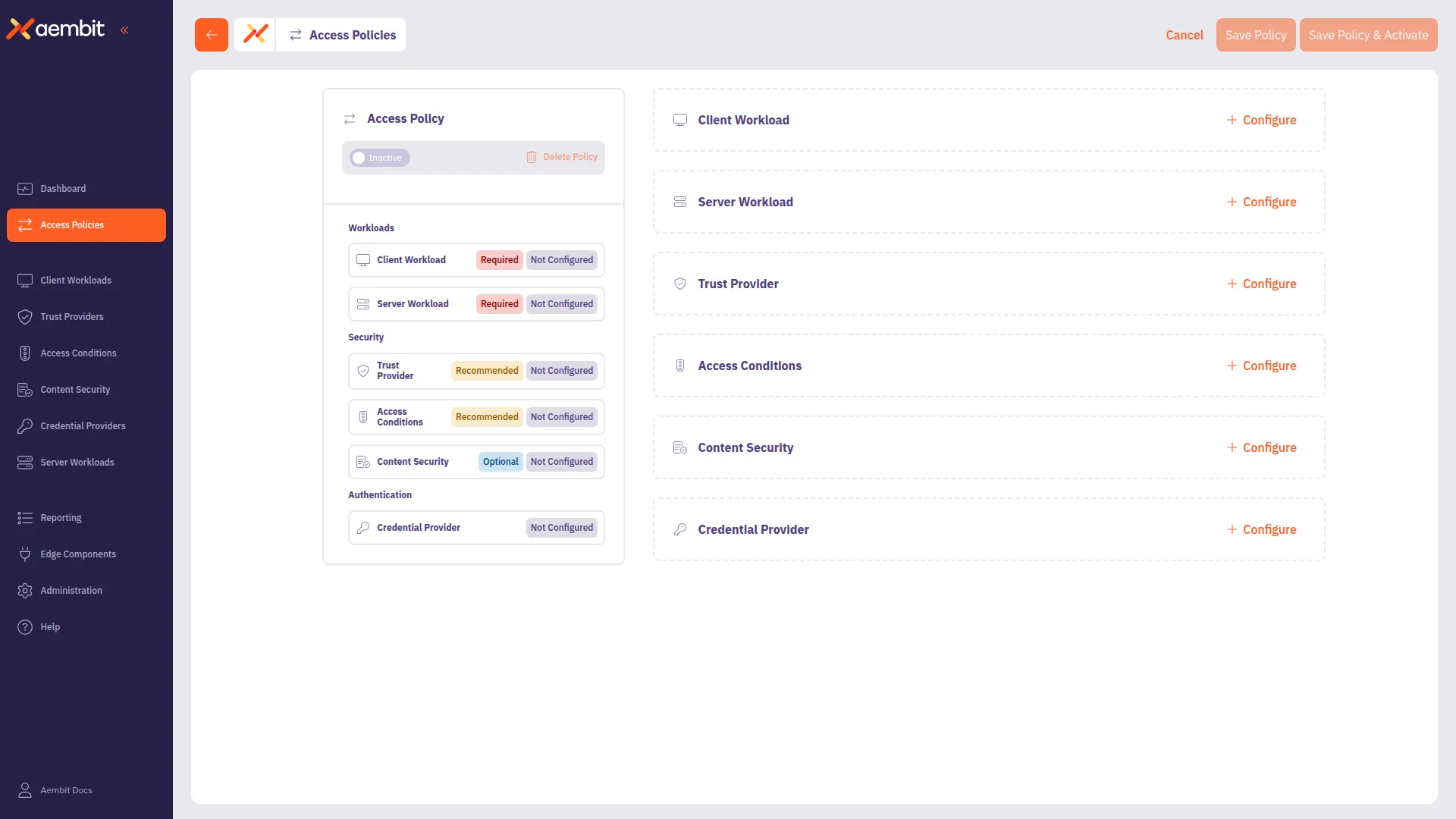
Open the Access Policy for your MCP server, or click + New to create it.
-
In the Content Security card, click + Configure to open the Content Security panel.
-
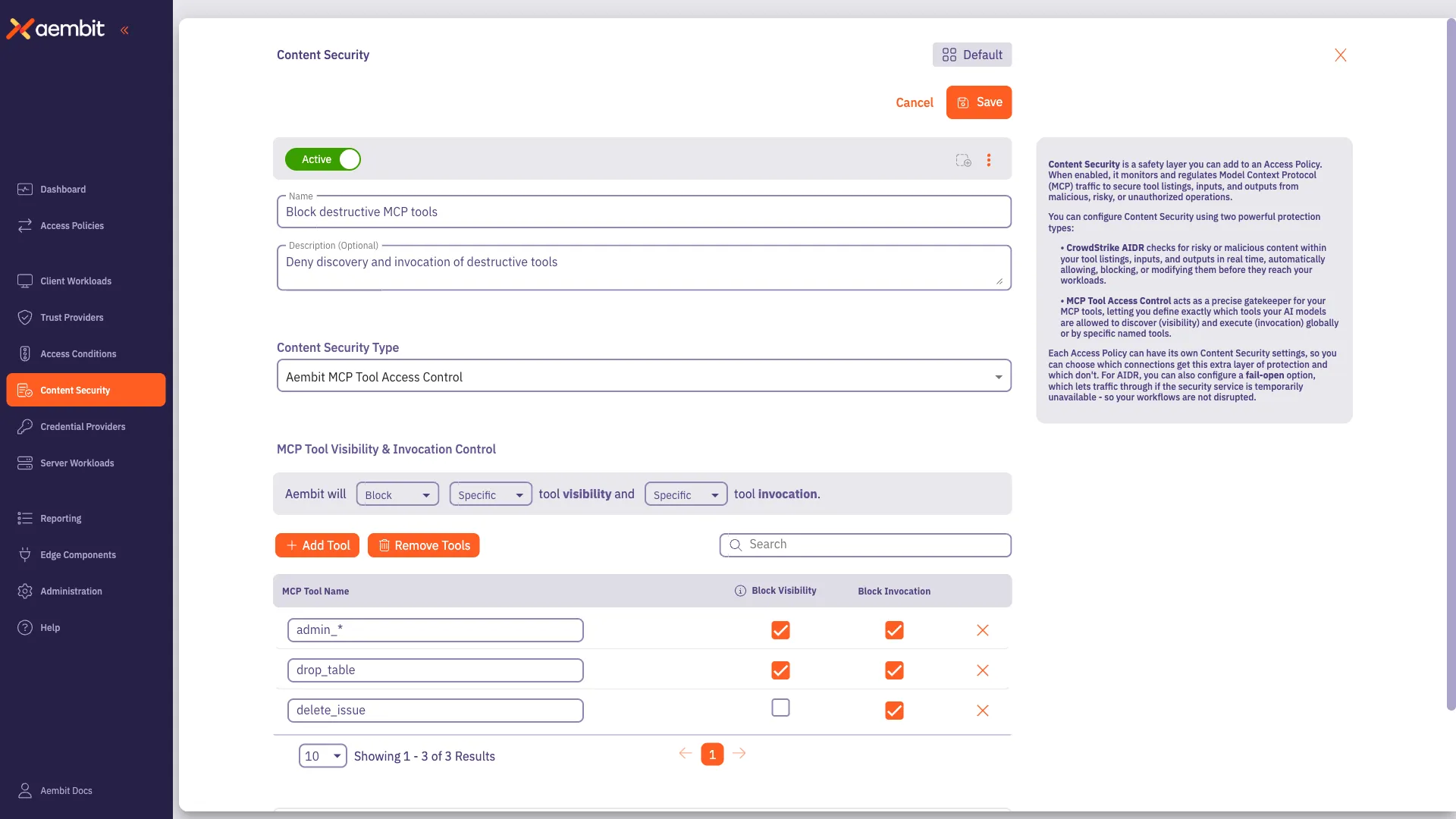
Leave the Active toggle on to enforce Content Security on this Access Policy.
-
Enter a Name and optional Description.
-
From the Content Security Type dropdown, select Aembit MCP Tool Access Control.
-
In the MCP Tool Visibility & Invocation Control section, set Allow or Block.
-
Set Tool Visibility to Specific or All.
-
Set Tool Invocation to Specific or All.
-
For each tool you want to govern, click + Add Tool, then enter an exact tool name or a glob pattern in the MCP Tool Name field.
A glob pattern covers a family of tools with one entry, including tools the MCP server adds later. For example,
admin_*coversadmin_settingsandadmin_reset.Use the name the MCP server publishes, not the prefixed version, or the entry can’t match.
-
(Optional) Edit the Visibility or Invocation checkbox for tools.
If you set either to Specific, a tool row shows a checkbox.
A checked box applies the column’s setting to that tool. An unchecked box doesn’t.
-
Click Save to add Content Security to the Access Policy.
Search and remove tools
Section titled “Search and remove tools”To search a long list, use the Search box.
To remove one tool, click the X in its row.
To remove every tool, click Remove Tools, then click Confirm. Removing every tool at once can’t be undone.
Terraform
Section titled “Terraform”You can manage Content Security with the
Aembit Terraform Provider.
See the
aembit_content_security
resource
for the full configuration reference.