How to review MCP Authorization Tracing
MCP Authorization Tracing is a live diagnostic view that surfaces each inbound authorization request as Aembit’s Model Context Protocol: A standard protocol for AI agent and server interactions that defines how AI assistants communicate with external tools and data sources.Learn more(opens in new tab) Identity Gateway receives it. Unlike Access Authorization Events and Workload Events, which are near-real-time, MCP Authorization Tracing shows requests in real time. Use it to reproduce a failing flow and watch what Identity Gateway processes.
When to use MCP Authorization Tracing
Section titled “When to use MCP Authorization Tracing”Use MCP Authorization Tracing when an MCP error doesn’t appear in a static event record. Use it to confirm which Client Workload: Client Workloads represent software applications, scripts, or automated processes that initiate access requests to Server Workloads, operating autonomously without direct user interaction.Learn more and Server Workload: Server Workloads represent target services, APIs, databases, or applications that receive and respond to access requests from Client Workloads.Learn more matched a specific request. It also gives immediate feedback while you verify a new Access Policy: Access Policies define, enforce, and audit access between Client and Server Workloads by cryptographically verifying workload identity and contextual factors rather than relying on static secrets.Learn more or workload configuration.
For root-cause investigation of past failures, use Access Authorization Events and Workload Events instead. For end-to-end investigation of an MCP failure that spans both the Authorization Server and the Identity Gateway, see Troubleshoot MCP and AI IAM access.
What MCP Authorization Tracing displays
Section titled “What MCP Authorization Tracing displays”For each inbound authorization request handled by MCP Identity Gateway, MCP Authorization Tracing displays:
| Column | Description |
|---|---|
| Timestamp | The time MCP Identity Gateway received the request. |
| Client IP | The source IP address of the inbound authorization request. |
| Access Policy | The Access Policy that Aembit matched to the Client Workload and Server Workload pair. |
| Redirect URI / Client Workload | The redirect URI presented by the MCP client during authorization, paired with the Client Workload that Aembit matched to it. |
| Resource Server / Server Workload | The protected resource URL the client is trying to reach, paired with the Server Workload that Aembit matched to it. |
| Severity | The severity of the entry: Info, Warning, or Error. |
When the Client Workload and Server Workload both match but no active Access Policy connects them, an entry indicates that the Access Policy is inactive or doesn’t exist.
When no Client Workload or Server Workload matches, the entry indicates that explicitly so you can map the symptom back to the workload or policy configuration that needs to change.
Reviewing MCP Authorization Tracing data
Section titled “Reviewing MCP Authorization Tracing data”To review MCP Authorization Tracing data, do the following:
-
Log into your Aembit Tenant.
-
Click Reporting in the left sidebar.
-
At the top, select Reporting ☰ MCP Authorization Tracing.
Aembit displays the MCP Authorization Tracing page with a list of inbound authorization requests. New entries appear in real time as MCP Identity Gateway receives each request.
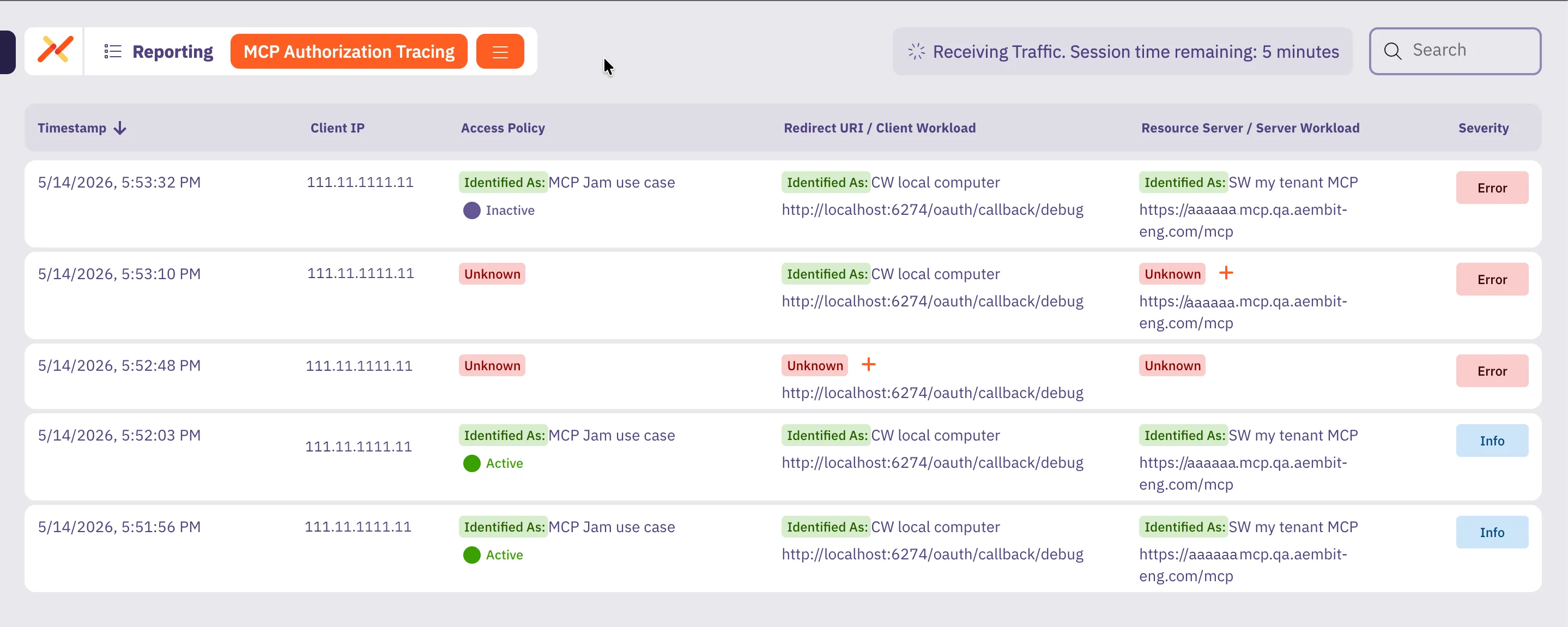
-
Since MCP Authorization Tracing is live, reproduce the flow you want to investigate while watching the entries populate in the table. For example, if you’re troubleshooting an MCP authorization failure, trigger the failure condition and watch for Aembit to display the corresponding entry. MCP Authorization Tracing entries appear as MCP Identity Gateway receives each request.
-
Inspect each entry and confirm:
- The redirect URI matches the MCP client’s callback URL, and the paired Client Workload is the one you expect.
- The resource server URL matches a Server Workload configured in Aembit, and the paired Server Workload is the one you expect for the target MCP server.
- An active Access Policy connects the matched Client Workload and Server Workload. If the Access Policy column indicates no match, confirm that an Access Policy exists and is active for that workload pair.
- The severity is
Info.WarningorErrorindicates that MCP Identity Gateway couldn’t match the request to a workload or Access Policy.
-
Update the relevant Client Workload, Server Workload, or Access Policy when you see a mismatch. The next Tracing entry reflects the change.
-
Retry the flow to confirm that the change resolves the issue you’re investigating.
If the issue is no longer present, the entry shows the expected Client Workload, Server Workload, and Access Policy, and the severity is
Info. If the issue persists, the entry still shows a mismatch or an unexpected severity, and you can continue iterating on your configuration until you resolve the issue.
Limitations
Section titled “Limitations”- Tracing shows authorization requests inbound to the MCP Identity Gateway. It doesn’t show the outbound proxied request to the upstream MCP server. For that, use Workload Events.
- Tracing is a live view. Entries aren’t retained as durable records—use Access Authorization Events for historical investigation, audit, and SIEM forwarding.