Configure an AWS STS Federation Credential Provider
AWS offers the AWS Security Token Service (STS), a web service designed to facilitate the request of temporary, restricted-privilege credentials for users.
Aembit’s AWS STS Federation Credential Provider: Credential Providers obtain the specific access credentials—such as API keys, OAuth tokens, or temporary cloud credentials—that Client Workloads need to authenticate to Server Workloads.Learn more broadly supports AWS services that use the SigV4 and SigV4a authentication protocol depending if requests are for regional services or global/multi-region services respectively. See How Aembit uses AWS SigV4 and SigV4a for information about SigV4/4a and how Aembit handles SigV4/4a requests.
Prerequisites
Section titled “Prerequisites”Before configuring an AWS Security Token Service Federation Credential Provider in Aembit, ensure you have the following:
- (Multiple Credential Providers
only) Aembit Edge: Aembit Edge represents components deployed within your operational environments that enforce Access Policies by intercepting traffic, verifying identities, and injecting credentials just-in-time.Learn more minimum versions:
- Agent Proxy 1.27.3865
- Agent Controller 1.27.2906
- An active Aembit Tenant: Aembit Tenants serve as isolated, dedicated environments within Aembit that provide complete separation of administrative domains and security configurations.Learn more with appropriate permissions to create and manage Credential Providers.
- An AWS account with permissions to create IAM roles and Identity Providers.
- A Server Workload configured with HTTP Application Protocol and AWS Signature v4 authentication method. See AWS Cloud Server Workload for configuration details.
Credential Provider configuration
Section titled “Credential Provider configuration”To configure an AWS Security Token Service Federation Credential Provider, follow these steps:
-
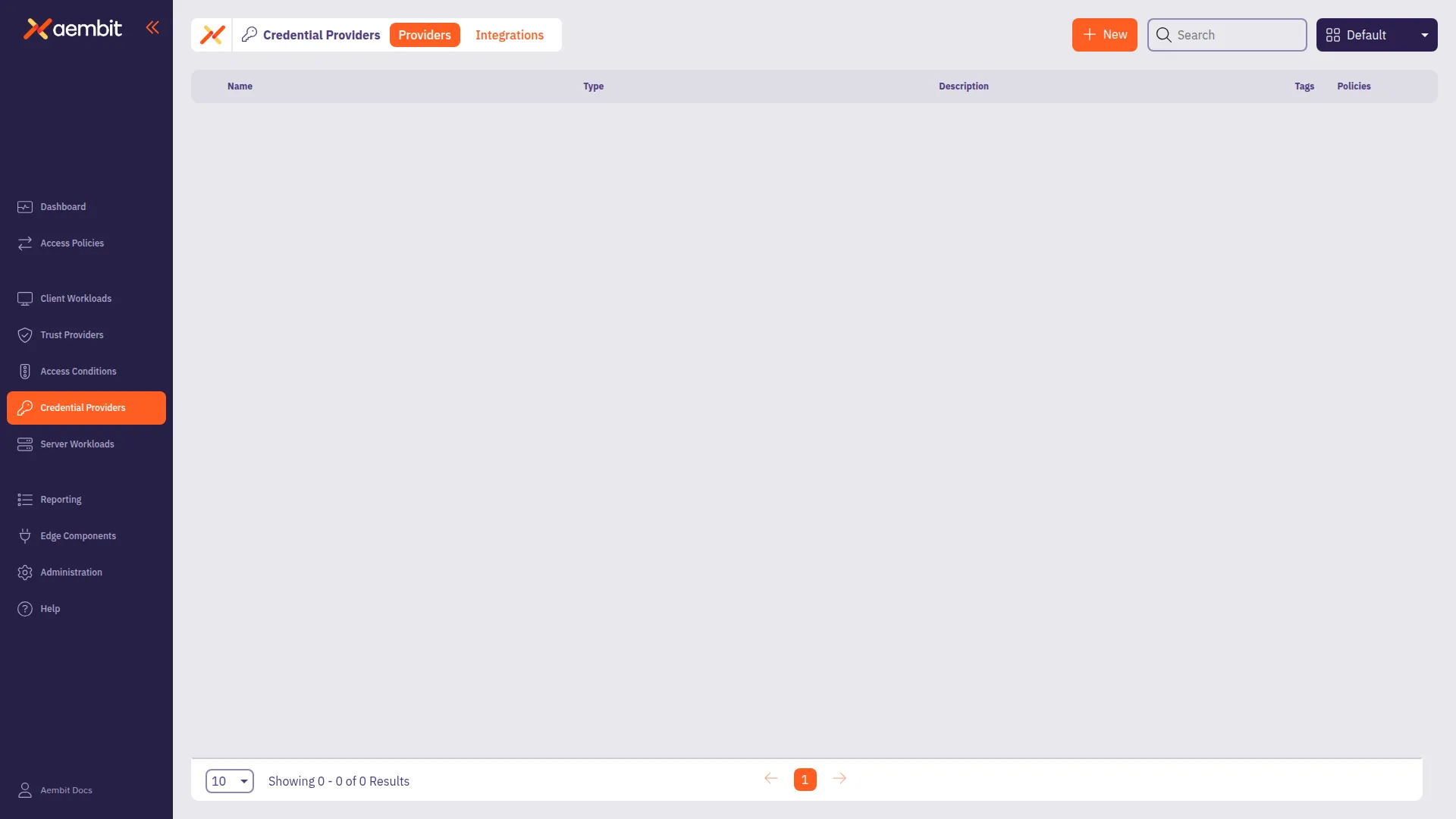
Log into your Aembit Tenant, and go to Credential Providers.
Aembit directs you to the Credential Providers page displaying a list of existing Credential Providers. In this example, there are no existing Credential Providers.
-
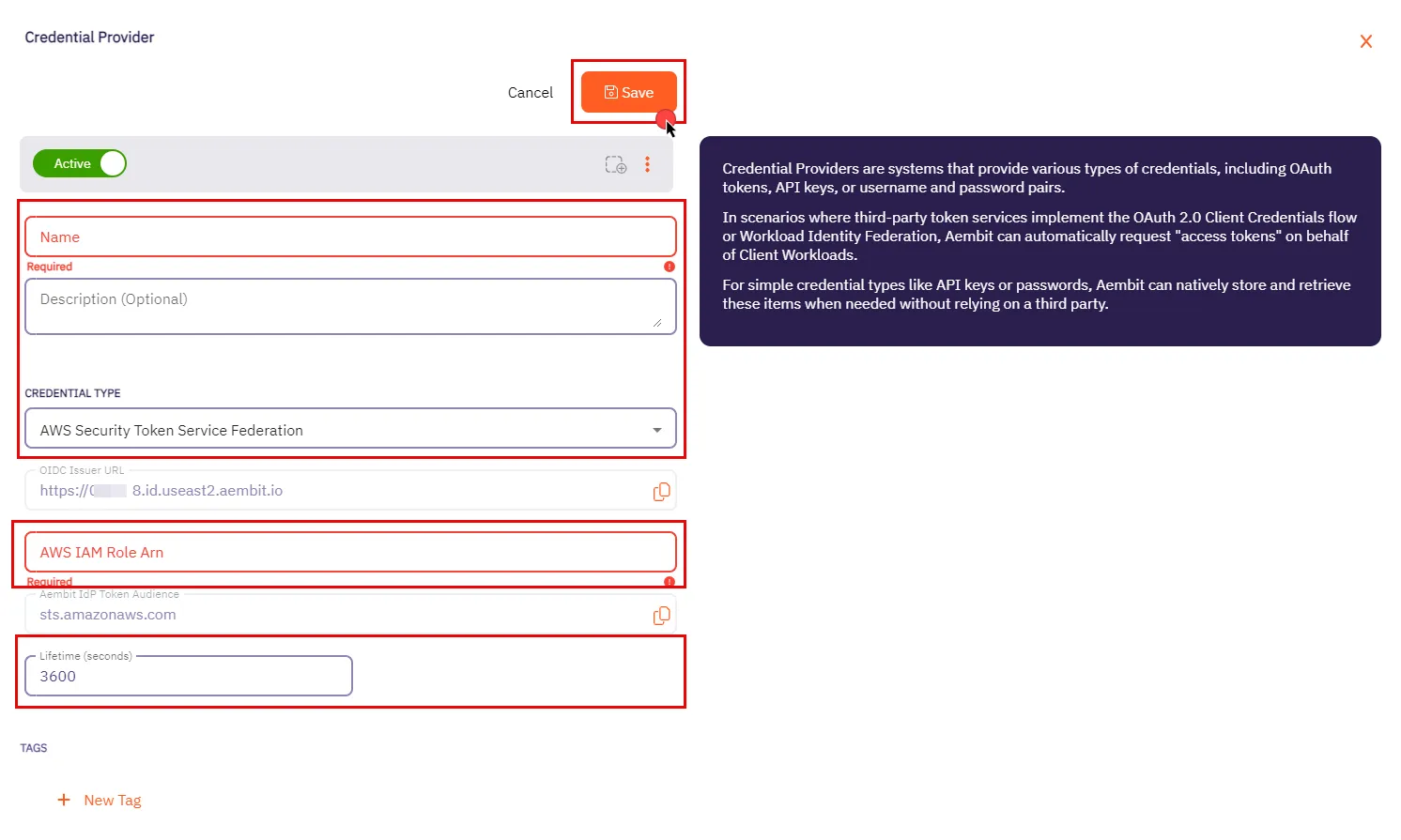
Click + New.
This opens the Credential Providers dialog window.
-
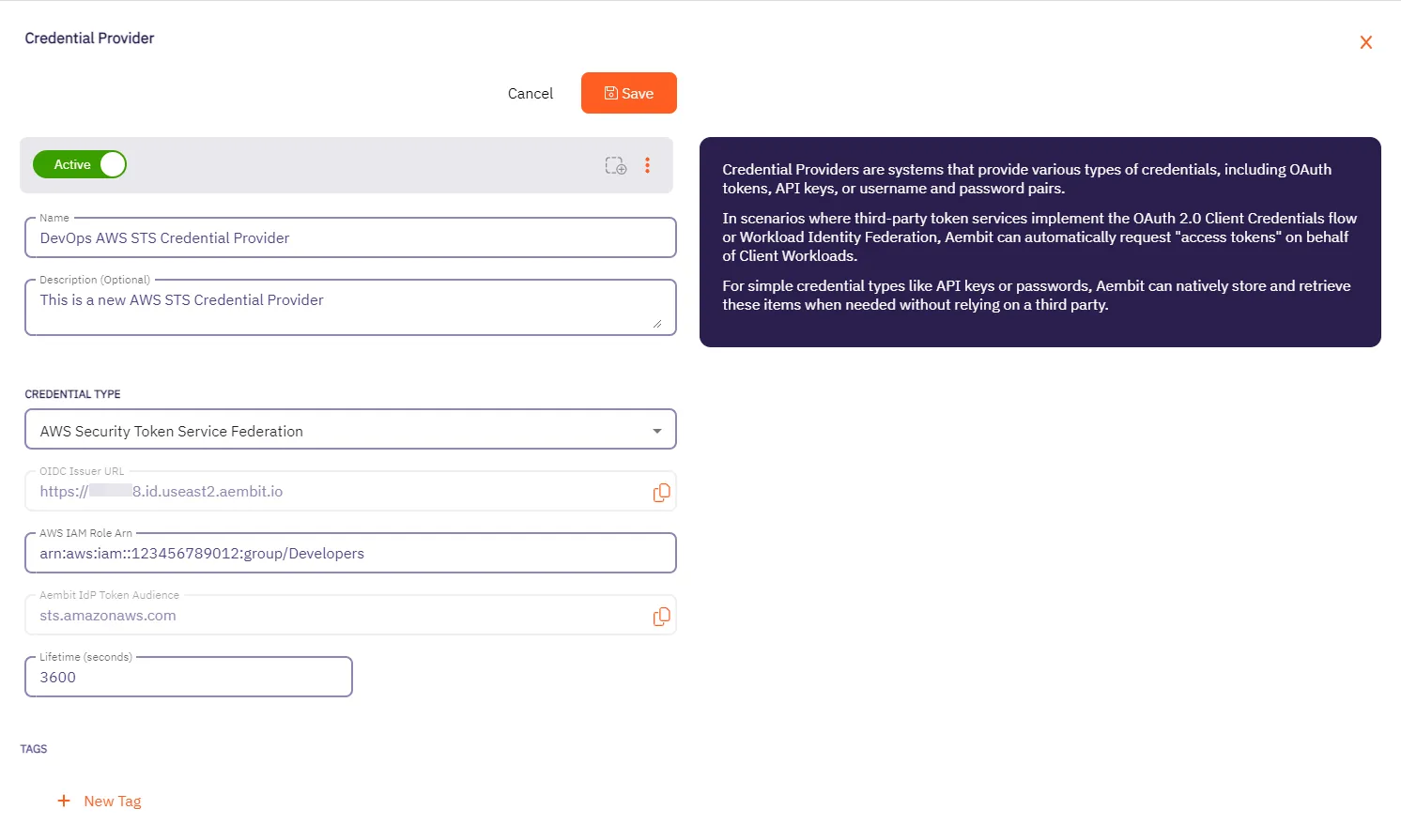
In the Credential Providers dialog window, enter the following information:
-
Name - Name of the Credential Provider.
-
Description - An optional text description of the Credential Provider.
-
Credential Type - A dropdown menu that enables you to configure the Credential Provider type. Select AWS Security Token Service Federation.
-
OIDC Issuer URL - OpenID Connect (OIDC) Issuer URL, auto-generated by Aembit, is a dedicated endpoint for OIDC authentication within AWS.
-
AWS IAM Role Arn - Enter your AWS IAM Role in ARN format, Aembit associates this ARN with the AWS STS credentials request.
-
Aembit IdP Token Audience - This read-only field specifies the
aud(Audience) claim value which Aembit uses in the JWT Access Token when requesting credentials from AWS STS. -
Lifetime (seconds) - Specify the duration for which AWS STS credentials remain valid, ranging from 900 seconds (15 minutes) to a maximum of 129,600 seconds (36 hours).
-
-
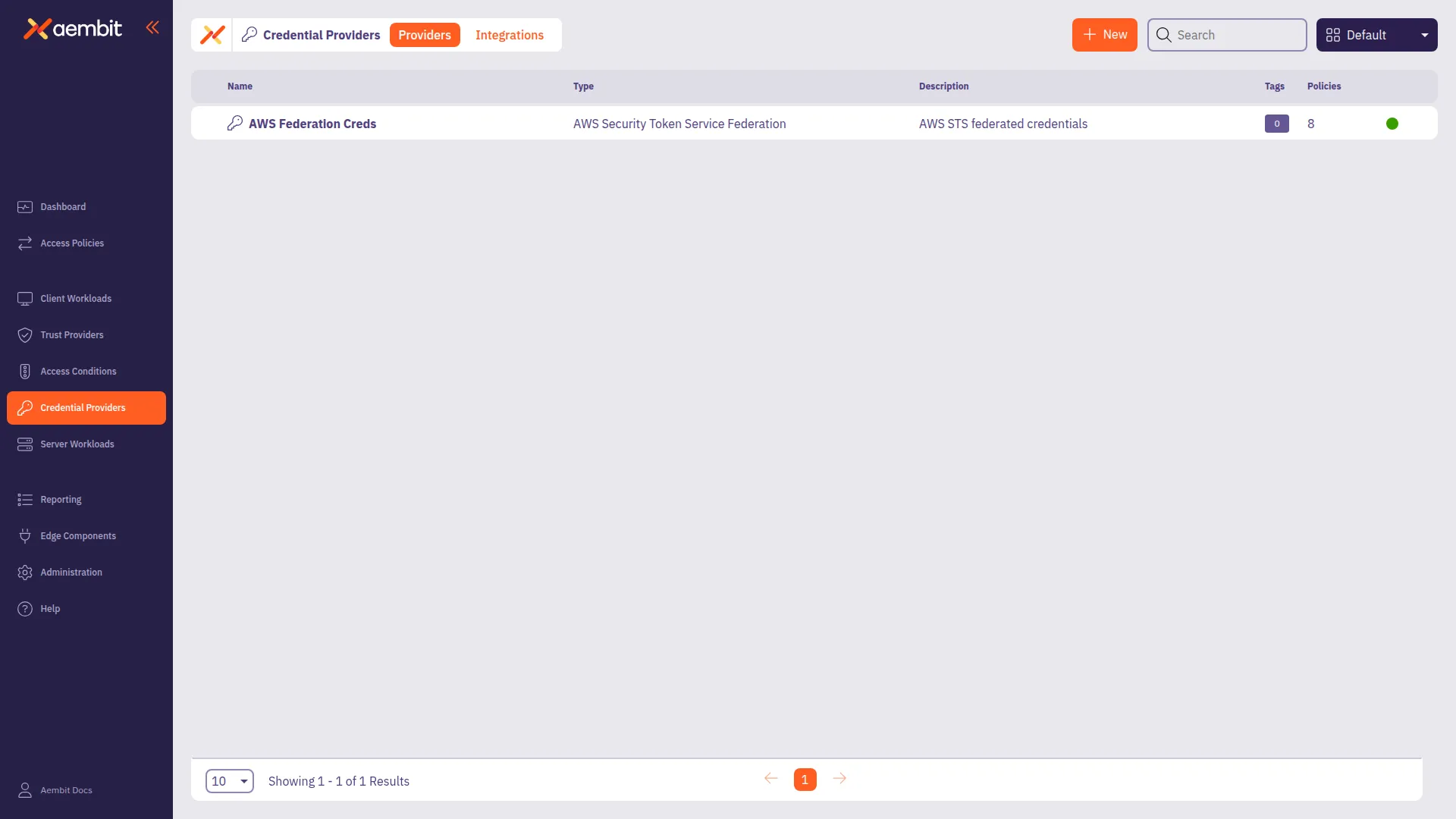
Click Save when finished. Aembit directs you back to the Credential Providers page, where you’ll see your newly created Credential Provider.
AWS Identity Provider configuration
Section titled “AWS Identity Provider configuration”To use the AWS STS Federation Credential Provider, you must configure the AWS Identity Provider and assign it with an IAM role:
-
Within the AWS Console, go to IAM > Identity providers and select Add provider.
-
On the Configure provider screen, complete the steps and fill out the values specified:
-
Provider type - Select OpenID Connect.
-
Provider URL - Paste in the OIDC Issuer URL from the Credential Provider fields.
-
Click Get thumbprint to configure the AWS Identity Provider trust relationship.
-
Audience - Paste in the Aembit IdP Token Audience from the Credential Provider fields.
-
Click Add provider.
-
-
Within the AWS Console, go to IAM > Identity providers and select the Identity Provider you just created.
-
Click Assign role and choose Use an existing role.
Configure multiple AWS STS Federation Credential Providers
Section titled “Configure multiple AWS STS Federation Credential Providers”To configure multiple AWS STS Federation Credential Providers within a single Access Policy, follow these steps. You create each Credential Provider first, then assign each one an Access Key ID selector when you map it in the Access Policy Builder. The selector belongs to the Credential Provider’s mapping in the Access Policy, not to the Credential Provider itself. Each selector must be unique within the Access Policy, and your application sends it as the AWS Access Key ID to choose that Credential Provider.
-
Create your first AWS STS Federation Credential Provider by following the Credential Provider configuration procedure.
-
Repeat the Credential Provider configuration steps to create additional AWS STS Federation Credential Providers, each with:
- A unique Name identifying its purpose (for example,
STS-S3-Access,STS-DynamoDB-Access) - A different AWS IAM Role Arn for each Credential Provider
- A unique Name identifying its purpose (for example,
-
For each new Credential Provider, configure the corresponding AWS Identity Provider by following the AWS Identity Provider configuration procedure.
-
Go to Access Policies and open the policy in the Access Policy Builder (create a new policy or edit an existing one).
-
In the Credential Provider card, configure your first AWS STS Federation Credential Provider. Then, for each additional one, click + Add Another. In the Credential Mapping dialog, click Continue, then select the Select Existing tab to add the Credential Provider you created.
-
Assign each Credential Provider its Access Key ID selector. In the Credential Provider Mappings list, expand the row for a Credential Provider, enter a unique value in AWS Access Key Id, and click Save. Repeat for each Credential Provider in the list. The Credential Provider card shows an Unmapped count until every Credential Provider has a selector.
-
Click Save Policy or Save Policy & Activate to save your Access Policy.
Application configuration
Section titled “Application configuration”Configure your application to use the appropriate Access Key ID selector for each AWS service request. Behind Agent Proxy, the application sets the selector as its AWS Access Key ID, and Agent Proxy extracts it from the AWS SigV4 Authorization header. Without Agent Proxy, the Aembit GitHub Action, the Edge SDKs, and the Edge API take the selector as a parameter of the credential request.
AWS CLI example
Section titled “AWS CLI example”To use the AWS CLI with multiple Credential Providers, set these environment variables:
# Set to any non-empty value (required by AWS CLI, replaced by Aembit)export AWS_SECRET_ACCESS_KEY=placeholder
# Set to the Access Key ID selector for the desired Credential Providerexport AWS_ACCESS_KEY_ID=AKIADUMMYFORROLEA
# Make AWS requestsaws s3 ls
Change AWS_ACCESS_KEY_ID to switch between Credential Providers. For example:
AKIADUMMYFORROLEA→ Uses Credential Provider configured for S3 accessAKIADUMMYFORROLEB→ Uses Credential Provider configured for DynamoDB access
GitHub Actions example
Section titled “GitHub Actions example”In a GitHub Actions workflow, set the aws-access-key-id input on the Aembit/get-credentials step.
The input requires version 1.3.0 or later of the action:
- name: Get AWS credentials from Aembit id: aembit uses: Aembit/get-credentials@v1.3.0 with: client-id: '${{ secrets.AEMBIT_CLIENT_ID }}' credential-type: 'AwsStsFederation' server-host: 's3.amazonaws.com' server-port: '443' aws-access-key-id: 'AKIADUMMYFORROLEA'For the full workflow, including how to pass the outputs to the AWS CLI, see Retrieve credentials with the Aembit GitHub Action.
Edge SDK example
Section titled “Edge SDK example”In application code that uses the Edge SDK, pass the selector as connection metadata on the credential request:
const credential = await client.getCredential({ server: { host: "s3.amazonaws.com", port: 443 }, credentialType: "AwsStsFederation", connectionMetadata: { accessKeyId: "AKIADUMMYFORROLEA" },});For the Python equivalent and the returned fields, see Select among multiple Credential Providers.
Verify your configuration
Section titled “Verify your configuration”To confirm your multiple AWS STS Federation Credential Provider configuration works correctly:
-
Set the environment variables for one of your Credential Providers.
-
Run an AWS CLI command (for example,
aws s3 ls). -
Check the access authorization events in your Aembit Tenant to confirm:
- Aembit selected the correct Credential Provider
- The
credentialProvider.namefield matches your expected Credential Provider
-
Change
AWS_ACCESS_KEY_IDto a different selector and repeat to verify the second Credential Provider.
Related topics
Section titled “Related topics”- Using multiple AWS STS Federation Credential Providers - Learn how Aembit routes requests to multiple AWS STS Federation Credential Providers
- How Aembit uses AWS SigV4 and SigV4a - Learn about AWS request signing
- Credential Providers overview - Overview of all available Credential Provider types