

Process Command Line
This page explains how to use the Process Command Line identifier to identify workloads deployed on Virtual Machines.
Understanding the process command line identifier
Section titled “Understanding the process command line identifier”The Process Command Line is the full command used to start a Client Workload process on a Virtual Machine, including the executable path and any arguments passed to it. This identifier is useful when multiple applications share the same process name but you can distinguish between them by their command-line arguments.
For example, if you run multiple Java applications on the same machine, you can distinguish between them using their command-line arguments:
java -jar /opt/apps/billing-service.jar --env productionjava -jar /opt/apps/analytics-service.jar --env production
The Process Command Line identifier supports wildcard matching, which allows you to match on specific parts of the command line. For example:
- Match by executable path:
*/opt/apps/billing* - Match by argument:
*--env production* - Match by both:
*billing-service*--env production*
Command-line arguments may contain sensitive information such as passwords, API keys, tokens, or connection strings. When you enable process identification, Aembit collects the full command line of matched processes. Make sure your application command lines don’t contain sensitive data before enabling this identifier, or refactor your applications to use environment variables or configuration files for sensitive values.
Applicable deployment type
Section titled “Applicable deployment type”Aembit supports the Process Command Line identification method for Edge-based deployments on Linux Virtual Machines.
To use this method of client workload identification, you must set the
AEMBIT_CLIENT_WORKLOAD_PROCESS_IDENTIFICATION_ENABLED environment variable to true.
By default, its value is false.
See Edge Component environment variables reference for details.
Create a Client Workload with a process command line identifier
Section titled “Create a Client Workload with a process command line identifier”To configure a Client Workload with a Process Command Line identifier, follow these steps:
-
Log into your Aembit Tenant.
-
In the sidebar, click Client Workloads.
-
Click + New to open the Client Workload editor panel.
-
Enter the Name and optional Description for the Client Workload.
-
Under Client Identification, select Process Command Line.
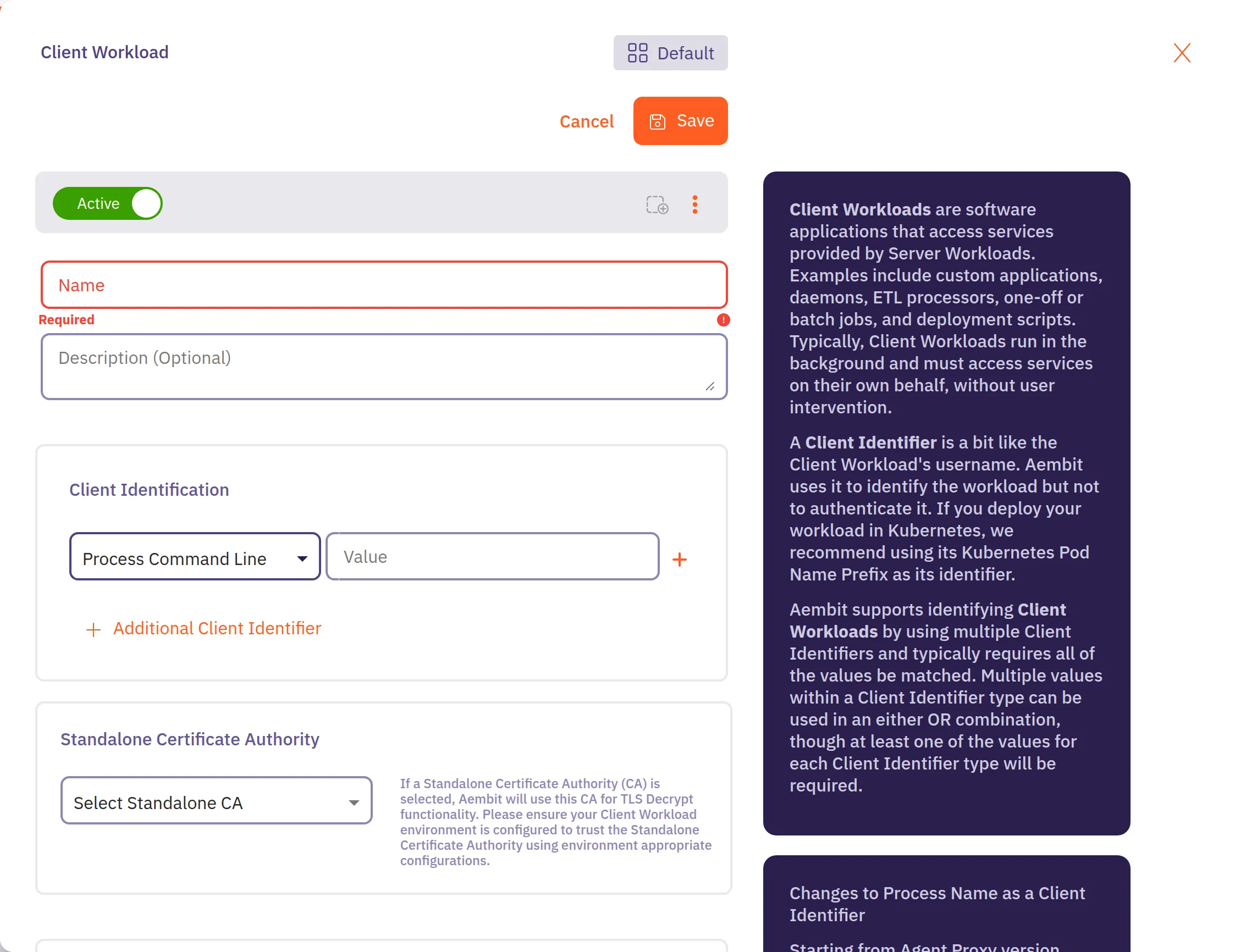
For Value, enter the command line pattern that identifies the Client Workload. You can use wildcards (
*) to match parts of the command line.For example:
- To match any process running a specific JAR file:
*billing-service.jar* - To match any process with a specific argument:
*--env production* - To match a specific command with arguments:
/usr/bin/java*billing-service.jar*
If you’re unsure how to find the command line, see Find the process command line.
- To match any process running a specific JAR file:
-
Click Save.
Aembit displays the new Client Workload on the Client Workloads page.
Find the process command line
Section titled “Find the process command line”To find the full command line of a process on a Virtual Machine, follow these steps:
-
Open a terminal on your Virtual Machine.
-
Find the Process Identifier (PID) of your application:
Terminal window ps aux | grep <your-process-name> -
Read the full command line from the
/procfilesystem:Terminal window cat /proc/<PID>/cmdline | tr '\0' ' 'Replace
<PID>with the actual process ID from the previous step.This command returns the full command line used to start the process, including the executable path and all arguments. Use this value (or a wildcard pattern based on it) as the Process Command Line in your Aembit Client Workload configuration.