Edge API authentication with GCP Identity Token
To authenticate with the Aembit Edge API from Google Cloud, you send an identity token that the GCP metadata server
mints for the service account attached to your workload.
Aembit validates the token’s signature against Google and matches its email claim against
your Trust Provider: Trust Providers validate Client Workload identities through workload attestation, verifying identity claims from the workload's runtime environment rather than relying on pre-shared secrets.Learn more.
Your workload never handles a service account key. The metadata server issues a short-lived token on request, and only code running on that instance can reach it.
Prerequisites
Section titled “Prerequisites”To authenticate using a GCP identity token, you must have the following:
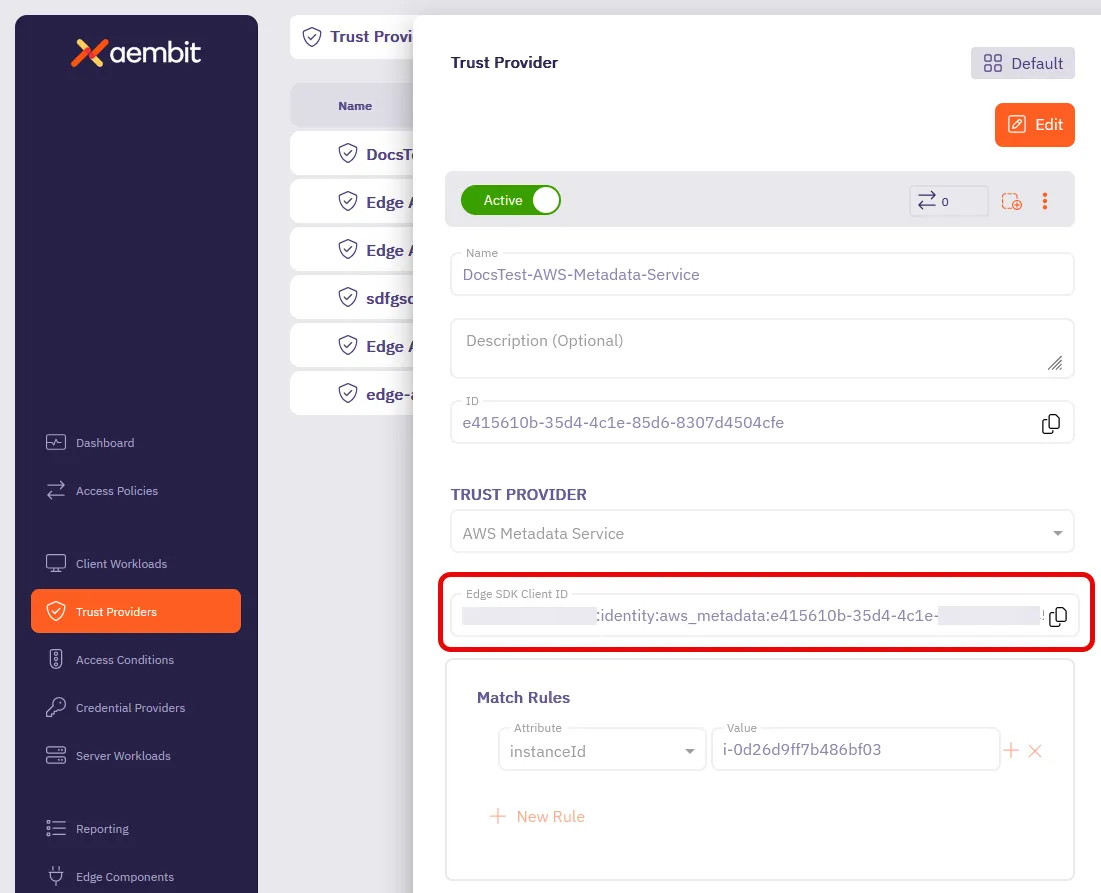
- Your Trust Provider’s Edge SDK Client ID: A structured identifier that Aembit generates when you configure a Trust Provider, encoding your region, tenant, and Trust Provider. It identifies a Trust Provider rather than an individual Client Workload.Learn more (how to find it)
- A GCP Identity Token Trust Provider in Aembit, with a match rule on the service account email
- A workload running on Google Cloud with a service account attached and network access to the metadata server at
metadata.google.internal. This covers Compute Engine instances, GKE pods, Cloud Run services, and Cloud Functions. - Your Aembit identity host, in the form
https://<tenantId>.id.<stack>.aembit.io. Google requires an audience value to mint an identity token.
The GCP Identity Token Trust Provider matches on the email claim only.
Make sure the service account attached to your workload is the one named in your match rule, not the default Compute
Engine service account.
Authenticate with a GCP identity token
Section titled “Authenticate with a GCP identity token”To authenticate with the Aembit Edge API using a GCP identity token, follow these steps:
-
Confirm which service account your workload runs as. Query the metadata server from inside the workload:
Terminal window curl -H "Metadata-Flavor: Google" \"http://metadata.google.internal/computeMetadata/v1/instance/service-accounts/default/email"The
Metadata-Flavor: Googleheader is required. The metadata server rejects any request that omits it.You should get output similar to the following:
Terminal window my-workload@my-project.iam.gserviceaccount.comThis value must match the Service account email match rule on your Trust Provider.
-
Request an identity token, setting
audienceto your Aembit identity host:Terminal window AUDIENCE="https://<tenantId>.id.<stack>.aembit.io"curl -H "Metadata-Flavor: Google" \"http://metadata.google.internal/computeMetadata/v1/instance/service-accounts/default/identity?audience=$AUDIENCE"The
audienceparameter is required. Google refuses to mint the token without it.Aembit matches on the
emailclaim rather than the audience, but set the audience to your identity host anyway. Any other service that checks the audience rejects a token minted for your Tenant.You should get a single-line JWT similar to the following:
Terminal window eyJhbGciOiJSUzI1NiIsImtpZCI6IjZjZTk1MWQ4NTNkMWQ0YTJlNjQxMWQ... -
Decode the token payload to check the claims before you send it.
The default token format includes the claims Aembit needs. You should see something similar to the following:
{"aud": "https://abc123.id.useast2.aembit.io","azp": "112233445566778899000","email": "my-workload@my-project.iam.gserviceaccount.com","email_verified": true,"exp": 1770000000,"iat": 1769996400,"iss": "https://accounts.google.com","sub": "112233445566778899000"}If
emailis missing, the service account isn’t attached to the workload. Attach it and request a new token. -
Construct the authentication request payload using the
clientIdand the identity token from the previous steps.It should look something like this:
Terminal window {"clientId": "<edge-sdk-client-id>","client": {"gcp": {"identityToken": "<gcp-identity-token>"}}} -
Send the authentication request to your Aembit Edge API endpoint:
Terminal window curl --location 'https://<your-aembit-edge-url>/edge/v1/auth' \--header 'Content-Type: application/json' \--data '{"clientId": "your-edge-sdk-client-id","client": {"gcp": {"identityToken": "eyJhbGciOiJSUzI1NiIsImtpZCI6IjZjZTk1MWQ4NTNkMWQ0YTJlNjQxMWQ..."}}}'When successful, you’ll receive output similar to:
{"accessToken": "eyJhbGciOiJSUzI1NiIsImtpZCI6IkpyR3JLQ0x6RVFN...","tokenType": "Bearer","expiresIn": 3600} -
Use the
accessTokenas thebearerTokenin subsequent API calls to authenticate your requests. This token is valid for the duration specified inexpiresIn(in seconds).GCP identity tokens are short-lived. Request a fresh one from the metadata server each time you re-authenticate rather than caching it.
How to find your Edge SDK Client ID
Section titled “How to find your Edge SDK Client ID”-
Log in to your Aembit Tenant.
-
Go to the Trust Providers section in the left sidebar.
-
Select the Trust Provider you want to use for Edge API authentication.
-
In the TRUST PROVIDER section, find the Edge SDK Client ID field.
-
Copy the Edge SDK Client ID to use in your authentication requests.